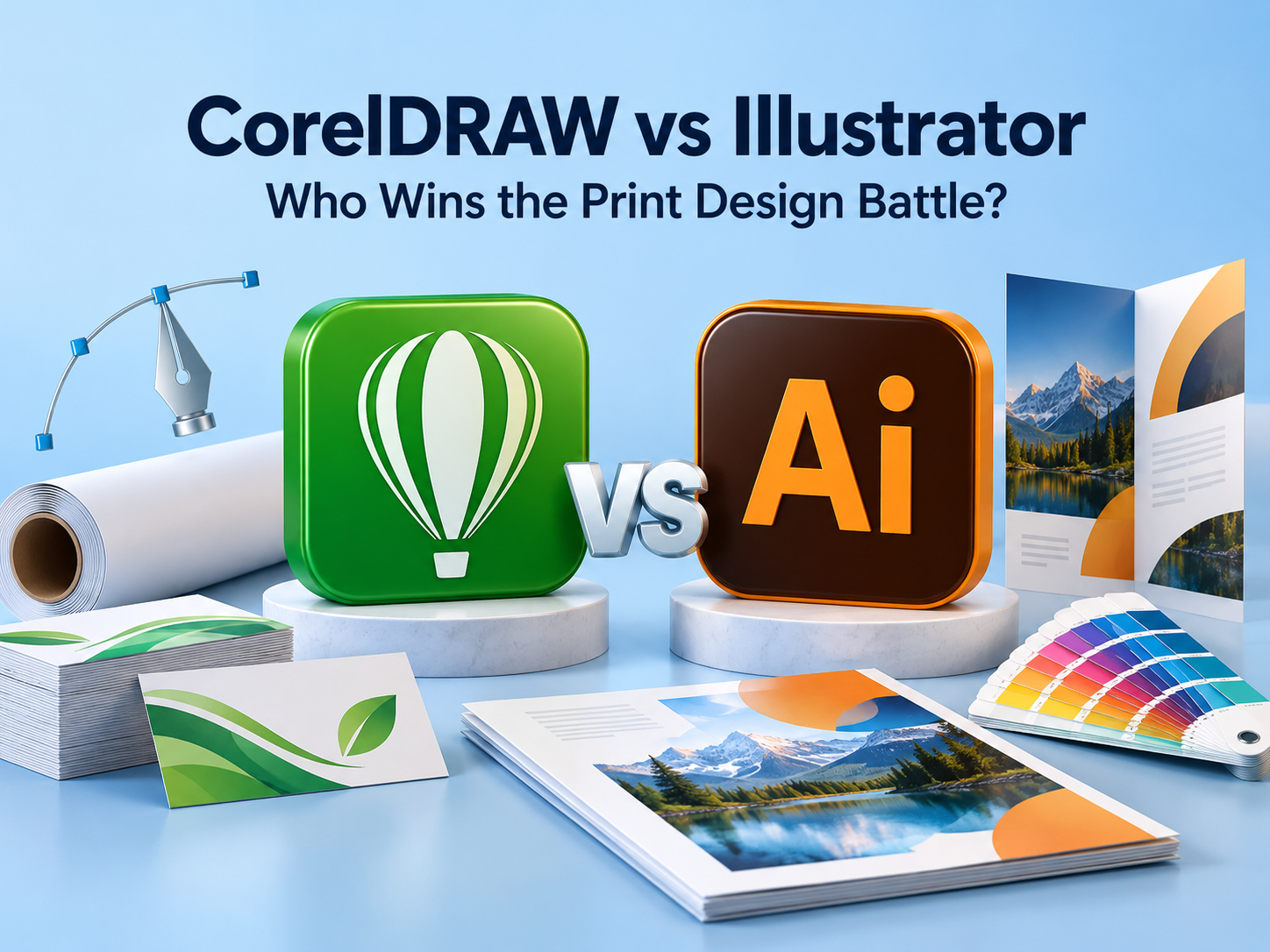
CorelDRAW vs Illustrator: Which Is Better for Print Design?
Design, AI & Marketing · Preeti Jalandhar · 20 October 2026
CorelDRAW and Illustrator both deliver professional print quality. Sharp results depend on correct dimensions, image resolution, colour profiles, and export settings. Choose the tool that suits your workflow and prepare every file carefully for print.
Introduction
A design can look impressive on a screen and still produce disappointing results on paper. Incorrect colours, missing fonts, blurry images, and unsuitable export settings can affect the final output. That is why choosing the right vector graphics software matters for anyone creating printed materials.
When comparing CorelDRAW vs Illustrator, both applications offer tools for professional artwork. Designers can use either to create business cards, brochures, labels, posters, packaging, and signage. However, their working methods suit different preferences and production environments.
Which is the best software for print design? The answer depends on your projects, collaborators, and printing requirements. Understanding their strengths will help you choose a practical starting point.
What Is CorelDRAW?
CorelDRAW is a vector design application used to create illustrations, page layouts, lettering, and promotional materials. Vector artwork uses mathematical paths, allowing shapes and text to scale without becoming pixelated.
Using CorelDRAW for print design can be particularly practical when a project combines graphics, text, and several related pages. Its page-based workspace lets designers organise materials within one document.
Common applications include:
Business cards and stationery.
Flyers, menus, and brochures.
Shop signs and promotional banners.
Product labels and stickers.
Artwork for garment decoration.
CorelDRAW also provides print preview and imposition tools, which can help arrange artwork for production. Their usefulness depends on the printing setup and the specifications supplied by the printer.
What Is Adobe Illustrator?
Adobe Illustrator is another professional vector design application. It supports detailed drawing, typography, shape construction, and artwork development for both print and digital projects.
Using Adobe Illustrator for print design makes sense when projects involve carefully constructed logos, illustrations, packaging graphics, or several coordinated brand assets.
Typical projects include:
Logos and visual identity systems.
Packaging artwork and labels.
Posters and promotional illustrations.
Custom lettering and icons.
Business cards and branded stationery.
Illustrator uses artboards to organise different designs or variations within one document. For example, a designer can develop a business card, label, and promotional flyer together while keeping each output area separate.
1. Print Quality: Can Either Deliver Better Results?
Neither application automatically produces sharper or more professional printing. Both can generate high-quality vector artwork when documents are prepared correctly.
In the CorelDRAW vs Illustrator comparison, output quality depends more on production decisions than the application name.
Important factors include:
Correct artwork dimensions.
Suitable image resolution at the final printed size.
Appropriate colour profiles.
Accurate bleed and safe margins.
Correct handling of fonts and transparency.
Vector shapes remain scalable, but photographs and raster effects still require attention. Enlarging a low-resolution photograph inside either application will not restore missing detail.
For dependable print-ready files, judge the document setup and exported output rather than assuming one program guarantees better printing.
2. Colour Management and Print Accuracy
Colour control is essential because screens emit light while printed materials reflect it. Paper, ink, printing equipment, and colour profiles all influence the result.
Both applications offer settings for CMYK colour management and spot-colour workflows. CorelDRAW’s PDF export controls can preserve spot colours or convert them to process colours, depending on production needs. Illustrator also provides PDF colour-conversion and output-profile options.
Before exporting, confirm:
Which colour profile the printer recommends.
Whether spot colours should remain separate.
Whether the workflow requires colour conversion.
How black text and large black areas should be prepared.
Avoid converting every file to a generic CMYK profile without checking requirements. The correct settings depend on the intended printing process.
3. Page Layouts and Everyday Production
CorelDRAW’s page-based structure can feel convenient for related print materials. A designer preparing several menu pages or stationery items may appreciate keeping the work together in one document.
Illustrator’s artboards suit separate artwork pieces, variations, and different output sizes. They can help organise a packaging range or campaign containing several matching assets.
Choose according to the task:
CorelDRAW: Consider it for page-based production and recurring print jobs.
Illustrator: Consider it for artwork variations and coordinated brand graphics.
For long publications with extensive text, a dedicated page-layout application is generally a more suitable choice. Neither tool should be selected solely because it can hold multiple pages or artboards.
4. Drawing Tools and Typography
Both programs support vector drawing, node or anchor-point editing, text formatting, and precise object positioning. Either can produce polished logos, lettering, and illustrations.
The difference often becomes clearer during actual use. Some designers prefer CorelDRAW’s object-handling approach; others prefer Illustrator’s path-editing workflow.
A useful comparison exercise is to create:
A logo using curves and geometric shapes.
A poster with a clear typographic hierarchy.
A label containing small text and detailed graphics.
Evaluate how easily you can revise the work. The best software for print design should help you make accurate changes comfortably, especially when clients request repeated revisions.
5. Bleed, Printer’s Marks, and PDF Export
Professional printing requires more than attractive artwork. Backgrounds may need to extend beyond the trimming edge, and the printer may specify particular PDF settings.
Illustrator includes controls for bleed and printer’s marks. CorelDRAW also provides PDF preparation settings for print providers, including options related to production marks and other prepress requirements.
Before delivery:
Ask the printer for the required PDF specification.
Apply the requested bleed.
Keep important content inside safe margins.
Add marks only when requested.
Inspect the exported PDF carefully.
Do not assume every print job needs identical settings. A business card and a large-format banner may have different preparation requirements.
6. Compatibility and Collaboration
Your collaborators can influence your choice as much as the tools themselves. If a print provider needs editable CDR files, CorelDRAW may simplify revisions. If a client or design team requests AI files, Illustrator may be more practical.
A correctly prepared PDF can support final delivery, but editable source-file requirements still matter.
Ask these questions before starting:
Which native file format does the team use?
Will another designer need to edit the artwork?
Are the required fonts available and appropriately licensed?
Does the printer want source files or a production PDF?
When transferring artwork between applications, inspect text, effects, transparency, and colour settings. Successful file opening does not guarantee that every element remains unchanged.
7. Learning Print Design with IAM
For learners considering IAM, a useful approach is to focus on practical outcomes when evaluating graphic design training. Software familiarity matters, but print knowledge helps turn a classroom project into usable production artwork.
A learning plan should cover:
Vector drawing and object alignment.
Typography and visual hierarchy.
Colour profiles and print specifications.
Bleed, trimming, and safe margins.
PDF export and final inspection.
Portfolio projects based on realistic briefs.
Whether you begin with CorelDRAW or Illustrator, practise complete projects. Designing a business card, preparing its production file, and reviewing a printed sample teaches more than memorising commands alone.
Conclusion
The CorelDRAW vs Illustrator decision depends on how you work and what your projects require. CorelDRAW can be a practical fit for page-based print production, especially where collaborators use CDR files. Illustrator can suit detailed vector artwork, branding projects, and teams that exchange AI files.
Both can deliver professional results. Choose the application that fits your production environment, then develop strong skills in typography, layout, CMYK colour management, and file preparation. For learners exploring IAM, these fundamentals provide a useful basis for choosing training and building a print design portfolio.
- CorelDRAW vs Illustrator
- Print Design
- CorelDRAW
- Adobe Illustrator
- Graphic Design
- Vector Graphics
- CMYK Colour Management
- Print-Ready Files