After Effects Expressions, Tracking and Green Screen: Jalandhar Guide
Film & Editing · Preeti Jalandhar · 29 October 2026
Learn After Effects expressions, motion tracking and green screen editing with this Jalandhar guide. Discover animation techniques, visual effects, chroma key compositing and practical skills to create engaging professional videos with IAM Jalandhar.
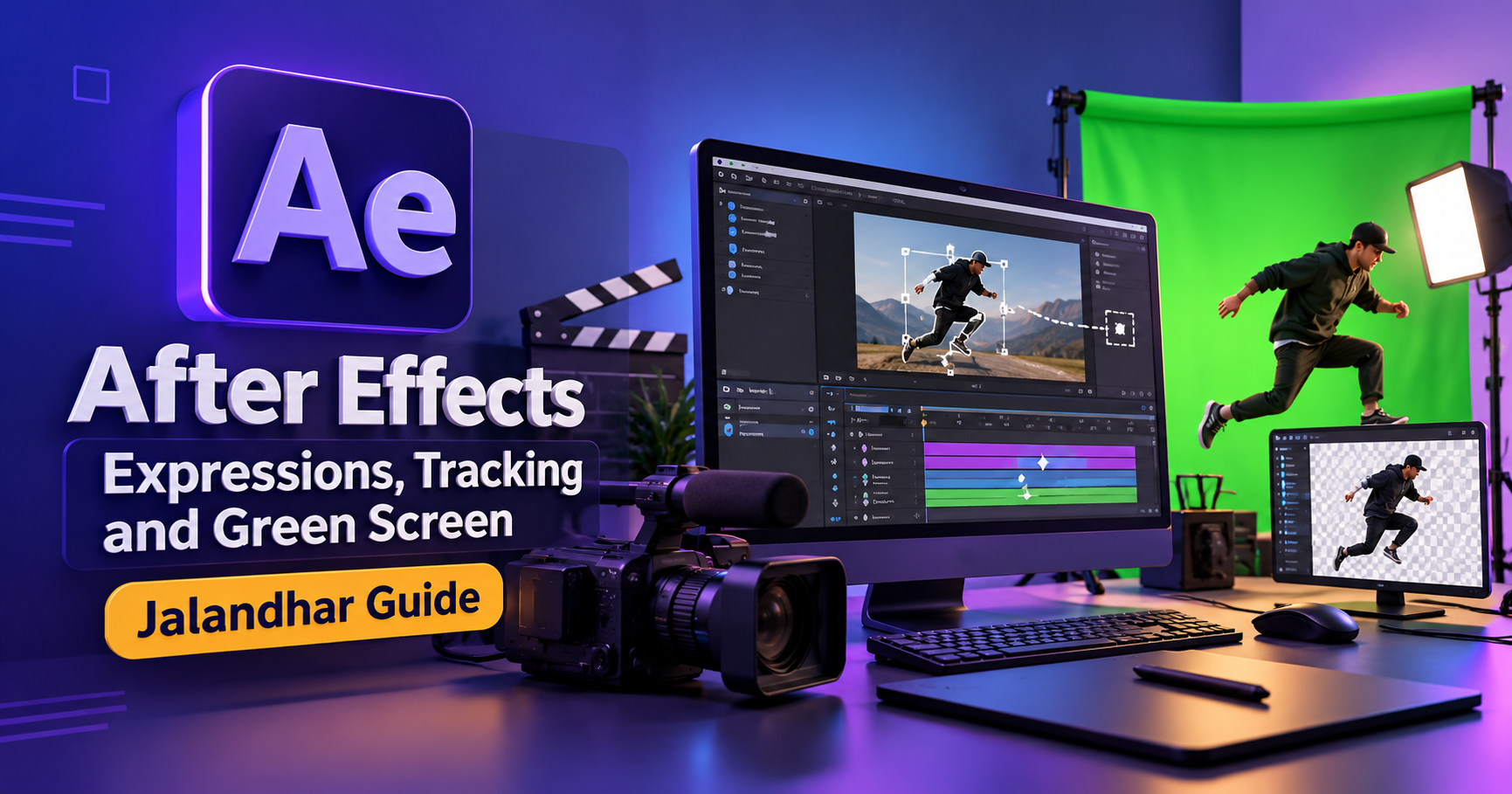
Video content has become an essential part of digital marketing, filmmaking, advertising, entertainment and social media communication. From animated promotional videos to cinematic effects and professional product advertisements, businesses and creators increasingly use advanced editing techniques to make their content more engaging. Learning After Effects Expressions, Motion Tracking and Green Screen Editing can help aspiring video editors develop practical skills for creating professional-quality visual content.
For students and creative professionals looking for an After Effects course in Jalandhar, understanding these techniques is an important step towards mastering motion graphics and visual effects. Adobe After Effects is a powerful application used to create animations, composite visual elements, add motion to graphic designs and enhance video footage. Its advanced features allow editors to combine creativity with technical precision.
At IAM Jalandhar, learners interested in video editing and motion graphics can explore the concepts behind animation, tracking, compositing and visual effects. Understanding how these tools work can help students practise different editing techniques and develop a portfolio that demonstrates their creative abilities.
This guide explains After Effects expressions, motion tracking, green screen editing, their applications, essential tools and how these techniques can contribute to a video editor's professional development.
Understanding Adobe After Effects
Adobe After Effects is a motion graphics and visual effects application used to animate text, graphics, illustrations and video footage. It is widely used in promotional videos, film production, social media content, title sequences, animated explainers and digital advertisements.
Unlike traditional video editing software, which primarily focuses on arranging and trimming clips, After Effects provides extensive controls for animation, compositing and visual effects. Editors can animate individual properties, track moving objects, remove green backgrounds and combine several visual elements into one composition.
Learning Adobe After Effects training in Jalandhar can be useful for students who want to understand the creative and technical aspects of video production. Beginners can start with keyframes, layers and basic animations before progressing to expressions, tracking and advanced compositing.
Some important features of After Effects include:
Keyframe-based animation for controlling movement and visual changes.
Motion tracking for connecting graphics to moving objects.
Expressions for automating animation properties.
Green screen compositing for replacing backgrounds.
Masking and rotoscoping for isolating visual elements.
Text animation for titles, advertisements and promotional videos.
Visual effects for enhancing footage and creating cinematic scenes.
Motion graphics for animated logos, infographics and explainers.
These features allow editors to produce creative visual content for a wide range of projects.
1. What Are After Effects Expressions?
After Effects expressions are small pieces of JavaScript-based code that control animation properties and automate repetitive tasks. They allow editors to create dynamic movements and relationships between different layers without manually adjusting every keyframe.
For example, an editor might want a logo to move continuously, text to follow another layer's position or an object to change its scale based on another property's value. Expressions can simplify these tasks and make animation more efficient.
Expressions are particularly useful when creating repeatable animations, animated graphics and complex motion design projects.
How Expressions Work
In After Effects, an expression can be applied to properties such as position, rotation, scale, opacity and other supported parameters. Instead of setting every movement manually, an editor defines a relationship or mathematical instruction that controls the property's behaviour.
For instance, the following expression creates continuous horizontal movement by changing an object's position over time:
This example adds horizontal movement to the property's existing value. The speed depends on the expression and composition time.
Another common expression is:
This creates random variation around a property's existing value, with approximately two variations per second and an amplitude of 30 units. The visual result depends on the property to which it is applied.
These examples demonstrate how expressions can create motion without requiring numerous manually placed keyframes.
Benefits of Learning Expressions
Learning After Effects animation expressions offers several advantages:
Reduces repetitive animation work.
Creates reusable animation behaviours.
Helps generate organic movements and dynamic effects.
Connects properties across multiple layers.
Makes certain animation adjustments faster.
Supports more advanced motion graphics workflows.
Encourages logical thinking and problem-solving.
Expressions are especially useful when working on animated typography, motion graphics packages, logo animations and data-driven visual elements.
Practical Projects Using Expressions
Students can practise expressions through small projects that gradually increase in complexity.
Examples include:
Animated text with continuous movement.
A logo with a subtle floating effect.
Repeating geometric patterns.
Automatically moving graphic elements.
Animated counters for promotional videos.
Interface animations and infographic elements.
Objects that respond to another layer's properties.
These exercises help learners understand how code and visual design can work together.
Do You Need Coding Experience?
Previous programming experience is not always necessary to begin learning expressions. Beginners can start with ready-made expressions, understand the properties they control and gradually learn how to modify values and create simple logic.
Basic knowledge of variables, numbers, arrays and mathematical operations can be helpful as projects become more advanced. Students should also learn how to identify expression errors and understand how expressions interact with keyframes.
The objective is not simply to copy code. It is to understand how expressions can solve animation problems and improve workflow efficiency.
2. Motion Tracking in After Effects
Motion tracking in After Effects is the process of analysing movement in video footage so that graphics, text or other visual elements can follow the movement of an object or camera.
For example, a creator may want a title to remain attached to a moving vehicle, a graphic to follow a person's hand or a label to stay aligned with a product. Motion tracking helps achieve these effects more naturally than manually positioning the graphic in every frame.
Tracking is commonly used in advertisements, films, music videos, product demonstrations and social media content.
Types of Motion Tracking
After Effects provides different tracking approaches for different production requirements.
Point Tracking
Point tracking follows a selected feature in footage, such as a high-contrast corner or a clearly visible detail. It can track motion in one or two dimensions, depending on the selected tracking method and setup.
Common applications include:
Attaching text to a moving object.
Following a product in a demonstration video.
Adding a graphic to a moving surface.
Tracking an object across a scene.
Accurate tracking depends on footage quality, contrast and the visibility of the selected feature.
Two-Point Tracking
Two-point tracking uses two tracking points to estimate movement that includes position, rotation and scale changes.
For example, a graphic placed on a moving object may need to rotate and resize as the object changes its orientation or apparent distance from the camera.
This approach is useful when the visual element needs to follow more than simple horizontal or vertical movement.
Camera Tracking
3D camera tracking in After Effects analyses footage to estimate camera movement and reconstruct a virtual camera with a set of 3D reference points.
Editors can use these points to position text, shapes and 3D elements so they appear integrated into the filmed environment.
Common uses include:
Adding 3D titles to buildings or streets.
Placing graphics within moving scenes.
Creating virtual elements for advertisements.
Combining live-action footage with digital objects.
Camera tracking generally works best with footage that contains sufficient visible detail and useful parallax. Very flat scenes or footage with motion blur may be more difficult to analyse accurately.
Planar Tracking
Planar tracking follows a surface, such as a screen, wall, signboard or product label. It is useful when a graphic must appear attached to a relatively flat surface that changes perspective.
For example, an editor can replace a blank screen in a video with a designed interface or attach artwork to a sign in a moving shot.
Planar tracking may involve additional tools or software depending on the workflow.
The Motion Tracking Process
A typical tracking workflow includes the following steps:
Import the video footage into After Effects.
Examine the clip and identify a suitable tracking point or surface.
Choose the appropriate tracking method.
Analyse the movement across the required frames.
Review the tracking data and correct errors where necessary.
Apply the tracking information to a layer or tracking target.
Add text, graphics or visual elements.
Preview the result and refine alignment, scale and perspective.
Learning motion tracking techniques requires practice because every clip presents different challenges. Lighting changes, fast movement, motion blur and objects passing in front of the tracking point can affect the results.
Real-World Applications of Motion Tracking
Motion tracking has many applications across the creative industry.
Product advertisements: Attach labels, animated text or promotional graphics to moving products.
Film production: Integrate digital elements into live-action scenes.
Social media videos: Add captions and effects that follow people or objects.
Educational content: Highlight objects and display explanatory information.
Music videos: Create moving graphics and stylised visual effects.
Brand videos: Combine logos, typography and animated elements with filmed footage.
For students pursuing video editing training in Jalandhar, tracking exercises can help develop precision, visual observation and compositing skills.
3. Green Screen Editing in After Effects
Green screen editing, also known as chroma key compositing, is a technique used to remove a specific background colour from footage and replace it with another image or video.
A subject is recorded in front of a green or blue background. The editor then uses keying tools to make the background transparent, allowing a new scene to appear behind the subject.
This technique is widely used in filmmaking, news production, advertisements, online education, product videos and social media content.
Green screen technology allows creators to produce different visual environments without filming at every location.
How Green Screen Editing Works
The process relies on colour separation. Software identifies a selected background colour and removes it from the image while preserving the subject as much as possible.
In After Effects, the Keylight effect is commonly used for chroma keying. It allows editors to select the screen colour and adjust settings to refine the transparency and appearance of the subject.
A basic green screen workflow includes:
Import the green screen footage.
Place the footage in a composition.
Apply the Keylight effect.
Select the green background using the screen colour picker.
Examine the transparency and refine the keying settings.
Clean up unwanted background areas using masks when necessary.
Reduce visible green spill on the subject.
Add the replacement background beneath the keyed footage.
Match colour, lighting, contrast and shadows where appropriate.
Preview the final composition and correct visible imperfections.
The quality of the final result depends on both the footage and the editing process.
Importance of Proper Green Screen Shooting
Good green screen results begin before editing. Poor lighting and unsuitable recording conditions can make the background difficult to remove cleanly.
Important recording practices include:
Use a green screen with consistent colour.
Light the background evenly.
Keep the subject separated from the background.
Avoid green clothing when using a green screen.
Reduce harsh shadows behind the subject.
Record footage with adequate resolution and exposure.
Avoid excessive motion blur where possible.
Check that the subject's hair and edges remain visible.
When the background is unevenly lit or the subject has green reflections, the editor may need to spend more time correcting the footage.
Keying, Spill Suppression and Edge Refinement
Simply removing the green colour does not always produce a professional result. Editors must also ensure that the subject looks natural against the replacement background.
Keying adjustments help remove the background while preserving important subject details. Edge refinement improves the appearance of fine details, including hair and soft fabric.
Spill suppression reduces unwanted green reflections around the subject's edges. Masking can help remove areas that do not need to remain visible.
Colour correction is another important step. If the subject is brightly lit but the replacement background is dark, the composite may look unrealistic. Matching exposure, colour temperature, contrast and lighting direction helps create a more convincing scene.
Learning these techniques is an essential part of green screen video editing training.
Green Screen Project Ideas
Students can practise chroma key editing through a variety of creative assignments.
Replace a green background with a professional studio.
Create a virtual classroom scene.
Produce a weather-report-style video.
Design a promotional product advertisement.
Create a cinematic background for a character.
Make an educational explainer with animated backgrounds.
Produce a short social media reel with a location change.
These projects encourage learners to combine editing, visual design and storytelling.
4. Combining Expressions, Tracking and Green Screen Techniques
Expressions, motion tracking and green screen compositing become especially powerful when used together.
Expressions control animation behaviour, tracking connects graphics to movement, and green screen editing combines subjects with different environments. Together, these techniques can create polished and visually engaging video content.
Consider a promotional video for a new product.
First, an editor can use green screen footage to isolate the presenter and place them in a designed studio environment. Next, motion tracking can attach product information to a moving object or screen. Finally, expressions can animate the text, prices or graphic elements.
The combined workflow makes it possible to produce a professional-looking advertisement with multiple visual layers.
Example Project: Animated Product Advertisement
A practical project may include the following stages:
Planning: Develop a short storyboard and identify the required footage and graphics.
Recording: Capture the presenter or product using suitable lighting and a clear background.
Compositing: Remove the green screen and place the subject in the designed environment.
Tracking: Attach labels or callouts to moving objects.
Animation: Use keyframes and expressions to animate text and graphic elements.
Refinement: Adjust colours, edges, timing and transitions.
Exporting: Render the final video using settings appropriate for the intended platform.
This project teaches students how multiple After Effects features can work together in a real production workflow.
Example Project: Social Media Reel
A short reel can demonstrate the same techniques in a more compact format.
An editor might begin with a presenter appearing in different virtual locations, add text that follows the presenter's movement and animate a title using expressions. The final video can then be adapted for a vertical social media format.
This type of project helps learners practise creative storytelling while understanding the technical requirements of modern video content.
5. Essential Skills to Learn Alongside After Effects
Mastering individual effects is useful, but professional-quality results also depend on a wider set of creative and technical skills.
Students learning motion graphics and visual effects in Jalandhar should consider developing the following abilities.
Animation Principles
Understanding timing, spacing, easing, anticipation and follow-through helps animations feel natural. Even a simple title becomes more engaging when its movement has a clear purpose.
Composition and Visual Hierarchy
Composition determines how viewers perceive the elements within a frame. Good visual hierarchy ensures that important messages, products and subjects receive the right amount of attention.
Typography
Animated text is widely used in advertisements, explainers and social media content. Students should learn how to select readable fonts, manage spacing and coordinate text movement with audio and video.
Colour Correction
Matching the colour of different visual elements helps create a consistent final composition. This is particularly important when combining green screen footage with a digitally created environment.
Audio and Timing
Music, voiceovers and sound effects contribute to the overall impact of a video. Matching animation timing to the soundtrack can improve clarity and viewer engagement.
Export Settings
Different platforms require different aspect ratios, resolutions, frame rates and compression settings. Understanding these choices helps ensure that the final video is suitable for its intended use.
Problem-Solving
Tracking errors, unwanted green edges and expression warnings are common challenges. Learning to identify their causes and test solutions is an important part of developing professional editing skills.
6. Who Should Learn After Effects Expressions, Tracking and Green Screen?
These skills can benefit people interested in several creative fields.
Beginners who want to explore video editing and motion graphics.
Graphic designers who want to animate their designs.
Video editors who want to expand their visual effects capabilities.
Digital marketing students who want to create more engaging advertisements.
Content creators who produce reels, promotional videos and educational content.
Film and media students interested in compositing and post-production.
Freelancers who want to offer animation and visual effects services.
Prior experience can be helpful, but beginners can start with fundamental editing concepts before moving to advanced techniques.
7. Career Applications and Portfolio Development
Knowledge of After Effects can support several creative career paths, depending on a person's broader skills, practical experience and portfolio quality.
Potential roles include:
Motion graphics designer.
Video editor.
Visual effects assistant.
Social media video creator.
Advertising video designer.
Post-production assistant.
Multimedia designer.
Freelance animation and compositing specialist.
These roles may require additional skills in video editing, graphic design, sound, storytelling or other production software. Learning After Effects alone does not guarantee employment, but a strong portfolio can help demonstrate practical ability to prospective employers and clients.
Building a Practical Portfolio
Students should focus on quality rather than simply collecting a large number of projects.
A useful beginner portfolio may include:
A short animated logo created with keyframes and expressions.
A motion-tracked title integrated into real footage.
A green screen composite with a carefully matched background.
A promotional video combining animation and live-action footage.
A vertical social media reel with animated typography.
A before-and-after example showing the editing process.
For each project, students can explain the objective, tools used, challenges encountered and solutions applied. This demonstrates not only the final result but also an understanding of the production workflow.
8. Learn Video Editing and Motion Graphics with IAM Jalandhar
Students searching for After Effects training in Jalandhar can explore learning opportunities at IAM Jalandhar to understand video editing, animation and visual effects concepts.
A structured learning approach should begin with the fundamentals of the interface, layers, compositions and keyframes. Once these concepts are clear, learners can progress to expressions, motion tracking, chroma keying and more advanced compositing techniques.
Practical assignments are particularly valuable because they allow students to apply concepts to realistic creative challenges. For example, a tracking assignment teaches them how to attach graphics to footage, while a green screen project develops their ability to isolate subjects and integrate them into new environments.
When evaluating a course, students should ask about:
The topics covered in the After Effects curriculum.
Opportunities to complete practical projects.
Access to software and suitable practice resources.
Guidance on expressions, tracking and compositing.
Portfolio development and project feedback.
The availability of demonstrations and instructor support.
IAM Jalandhar can be considered by learners who want to explore creative software training and develop a foundation in video production. Prospective students should confirm the current course syllabus, duration, fees and practical training facilities directly with the institute before enrolling.
9. Tips for Beginners Learning After Effects
Starting with advanced visual effects can feel challenging, but a step-by-step approach makes learning more manageable.
Start with the interface: Learn compositions, layers, timelines and essential panels.
Practise keyframes: Animate position, scale, rotation and opacity before attempting complex effects.
Experiment with expressions: Begin with simple expressions such as
wiggle()and gradually explore more advanced controls.Use suitable footage: Select clips with clear subjects and visible tracking features.
Practise clean keying: Experiment with Keylight using properly recorded green screen footage.
Study real examples: Analyse how titles, transitions and graphics are used in professional videos.
Complete small projects: Finish short animations before moving to complex compositions.
Review your results: Watch the final render and look for tracking slips, rough edges and inconsistent colours.
Organise your files: Keep footage, graphics, audio and project files arranged clearly.
Keep learning: Explore new workflows and improve your skills through regular practice.
Consistency is more important than attempting every advanced effect at once. A strong understanding of the basics makes complex projects easier to manage.
Conclusion
Learning After Effects Expressions, Motion Tracking and Green Screen Editing can help aspiring video editors develop a valuable combination of animation, compositing and visual effects skills. Expressions make it possible to automate animation and create dynamic movements, motion tracking connects digital graphics with real footage, and green screen techniques allow subjects to be placed in different visual environments.
These techniques are used in advertisements, films, educational videos, social media content and many other forms of digital communication. Combining them with animation principles, typography, colour correction and practical storytelling can help learners create more polished and effective video projects.
For students interested in After Effects courses in Jalandhar, IAM Jalandhar is an option to explore when looking for creative software training. By choosing a structured learning path, practising regularly and building a portfolio of original projects, learners can strengthen their technical abilities and prepare for further opportunities in video editing, motion graphics and visual effects.
The most effective way to master these tools is to move beyond tutorials and apply each technique to a real project. Start with a simple animation, progress to motion tracking, practise green screen compositing and gradually combine all three into complete video productions.
- After Effects Expressions
- Motion Tracking
- Green Screen Editing
- Adobe After Effects
- Motion Graphics
- Visual Effects
- Video Editing
- IAM Jalandhar