Nuke Keying, Roto and Clean-Up: Advanced VFX Guide for Ludhiana
Design, AI & Marketing · Jaspreet · 25 October 2026
Learn Nuke keying, rotoscoping and clean-up step by step. This advanced VFX guide for Ludhiana students covers green screen removal, roto workflow, wire and rig removal, and a 4-week practice plan to build a pro compositing showreel.
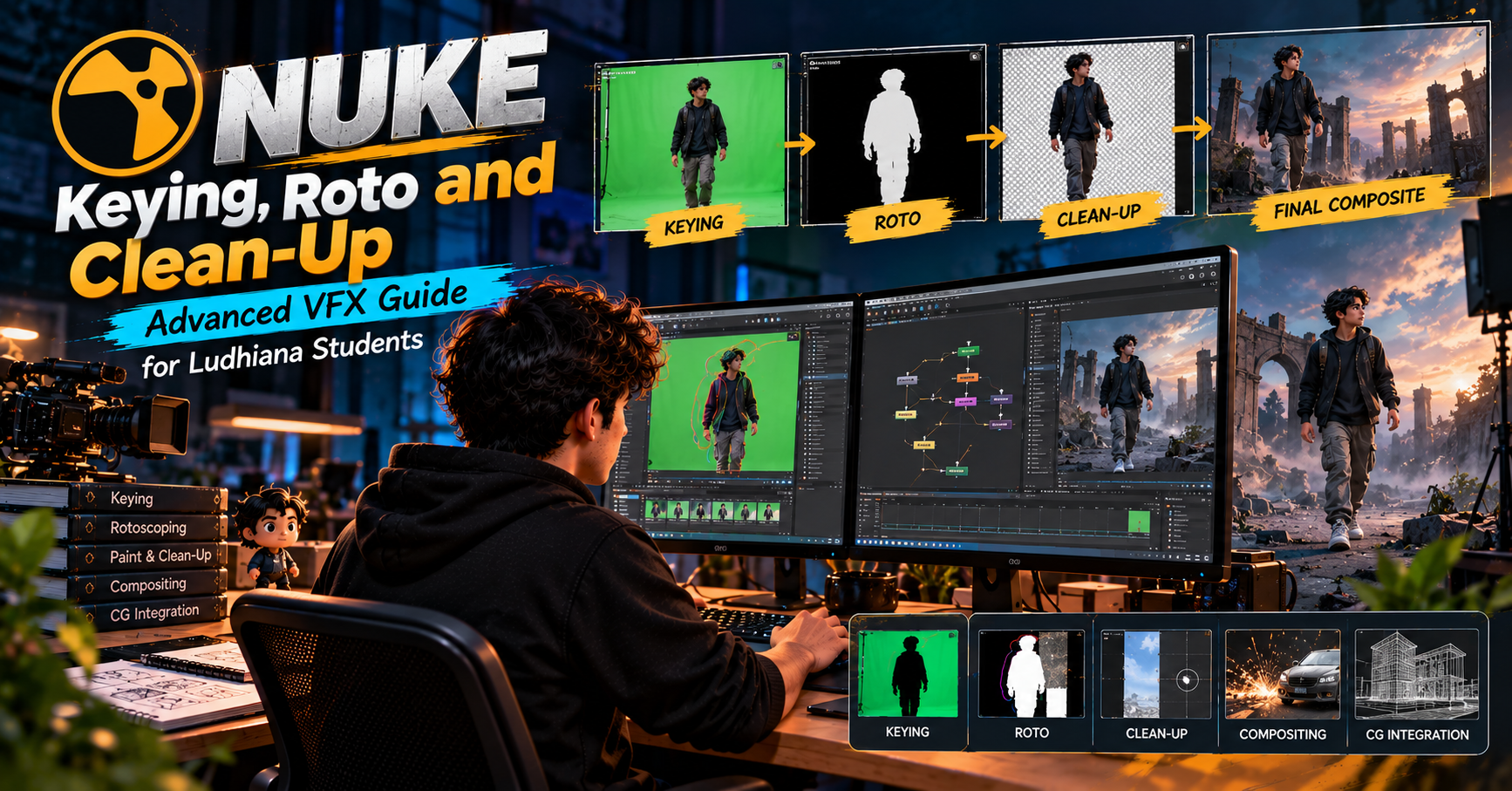
Nuke Keying, Roto and Clean-Up: Advanced VFX Guide for Ludhiana, Step by Step
Punjab’s video industry is growing fast. Punjabi music videos, web series, ad films and high-end wedding cinematography all need compositors who can fix footage quickly and cleanly. If you’re a VFX student or working artist in Ludhiana, three skills in Nuke will carry you into professional work: keying, rotoscoping and clean-up.
This guide takes you through each one step by step, using the same workflow studios use.
Why Nuke?
Nuke is node-based, so every operation is a visible, editable block in a graph. You can go back and change a key or a mask at any point without redoing your work. That non-destructive structure is why feature-film and episodic studios rely on it. If you want a job in compositing, Nuke is the tool to know.
Tip: Nuke has a free Non-Commercial version, so you can practise at home without buying a licence.
Part 1: Keying (Green Screen Removal)
Keying separates a subject from a green or blue background. A good key isn’t a single node. It’s a small chain of them.
Step 1: Check your footage first
Before adding any node, inspect the plate:
Look at each RGB channel (press R, G, B in the Viewer). The green channel usually shows the most noise.
Scrub through the whole clip. Find the frames where hair, motion blur or shadows are hardest.
Look for uneven lighting on the screen. That’s the most common cause of a bad key.
Step 2: Add Keylight
Connect a Keylight node to your plate and work through these settings:
Set the Screen Colour by Ctrl+Alt+clicking a clean area of the green screen.
Switch the View to Status to see the matte clearly: white is solid, black is transparent, grey is semi-transparent.
Adjust Screen Gain and Screen Balance to clean the background.
Use Clip Black and Clip White carefully. Pushing them too far destroys fine edge detail.
Step 3: Build a core and edge matte
Professionals rarely trust one key for everything. Split the work:
Core key: a harder key (eroded slightly) that keeps the solid body of the subject.
Edge key: a softer key that keeps hair and motion blur.
Combine them with a Merge (max or plus) so the edge detail survives and the inside stays solid.
Step 4: Despill
Green spill on skin and clothes gives away a bad composite. Use Keylight’s Despill Bias, or a dedicated Despill approach, to neutralise it. Always check against your new background, not the original plate.
Step 5: Edge treatment
EdgeBlur or a small Blur on the matte softens harsh borders.
Erode (filter) shrinks the matte slightly to remove leftover green fringing.
EdgeExtend pulls colour from inside the subject into the edge pixels so no green rim remains.
Step 6: Comp over the background
Use Premult on the keyed subject and place it Merge (over) the new background. Match the subject’s black levels, contrast and colour with a Grade node, because most keys fail at integration, not extraction.
Part 2: Rotoscoping
Roto is hand-drawn masking, frame by frame or with keyframes. It’s essential when a green screen isn’t available or the key fails.
Step 1: Plan your shapes
Don’t draw one huge shape around the whole actor. Break the subject into parts:
Head
Torso
Upper arm, forearm, hand (separately)
Upper leg, lower leg, foot
Smaller shapes move more predictably and need far fewer keyframes.
Step 2: Draw with the Roto node
Click the Bezier tool and place points around the form.
Use B-spline for smoother organic shapes, and Bezier for harder edges.
Keep the point count low. Fewer points mean smoother motion and easier editing.
Step 3: Keyframing strategy
Set keys on the first and last frames.
Go to the middle frame and correct the shape.
Keep subdividing (middle of the halves, and so on) only where the shape drifts.
This is much faster than keying every frame and gives you smoother motion.
Step 4: Handle edges and motion blur
Add feather to soften edges.
Turn on motion blur in the Roto node so the mask matches the footage.
Use separate shapes for the sharp edge and the blurry edge of a moving hand.
Step 5: Use tracking to help
Track a stable point or planar surface with the Tracker or PlanarTracker and link your shape to it. This reduces manual keyframes on things like screens, signs and walls.
Part 3: Clean-Up (Wire, Rig and Object Removal)
Clean-up is the invisible work that fixes continuity errors, removes rigs, wires, logos and crew reflections, and hides unwanted objects.
Step 1: Find a clean source
The best clean-up uses real pixels from elsewhere in the shot or another frame:
A clean plate (shot without the object).
A different frame where the area is unobstructed.
Step 2: Choose the right tool
RotoPaint for quick clone and paint fixes.
A FrameHold with a painted patch, then a Merge with a roto mask, for static areas.
Tracker + Transform to lock a patch onto a moving background.
Step 3: The patch workflow (for moving shots)
Pick a clean reference frame and FrameHold it.
Paint or clone out the object on that single frame.
Track the background motion, then apply it to the patch with a Transform.
Use a Roto mask to blend the patch in with a soft edge.
Merge (over) the patch onto your original plate.
Step 4: Match grain and noise
A clean patch with no grain looks fake. Use a Denoise and re-apply matching grain (or the Grain node) so the repair blends into the plate.
Step 5: Check at full resolution and in motion
Always play the shot back at speed and zoom in at 100%. Flickering patches, edge crawl and colour shifts only show up in motion.
Common Mistakes to Avoid
Over-keying: crushing the matte until hair and fine edges disappear.
Skipping despill: leaving green on skin and clothing.
Over-complicated roto: using too many points or keyframes.
Ignoring grain and colour match: the number one reason comps look “pasted”.
Working only at low resolution: always check final quality at full size.
Practice Plan for Ludhiana Learners
Try this simple four-week routine:
Week 1: Key five different green screen clips. Compare results and note which ones need core and edge splits.
Week 2: Roto a person walking and a hand moving. Aim for the fewest keyframes.
Week 3: Remove a wire, mark or object from a shot using the patch workflow.
Week 4: Combine all three into a short 10-second composite and build a showreel breakdown.
Free plates are available from VFX sites and Nuke learning communities, and you can also shoot your own with a phone and a plain-coloured cloth or wall.
Final Thoughts
Keying, roto and clean-up are the foundation of professional compositing. Master them in Nuke and you’re ready for entry-level compositor, roto artist and clean-up artist roles in studios, as well as freelance work for Punjab’s growing film, music and advertising industries.
Start small, practise consistently, and build a showreel that shows your process and your final shots side by side.
- Nuke
- Nuke Compositing
- VFX Course Ludhiana
- Keying
- Rotoscoping
- Green Screen
- VFX Clean-Up
- Compositing