
Nuke Compositing for Beginners in Ludhiana: Interface and Node Basics
VFX & Compositing · Nandini · 24 October 2026
Learn Nuke compositing for beginners in Ludhiana with this practical guide to the interface, node graph, Viewer, and essential tools. Explore Read, Write, Merge, Grade, Transform, and Blur nodes, practise basic compositing, and build a strong foundation for a career in VFX and film production.
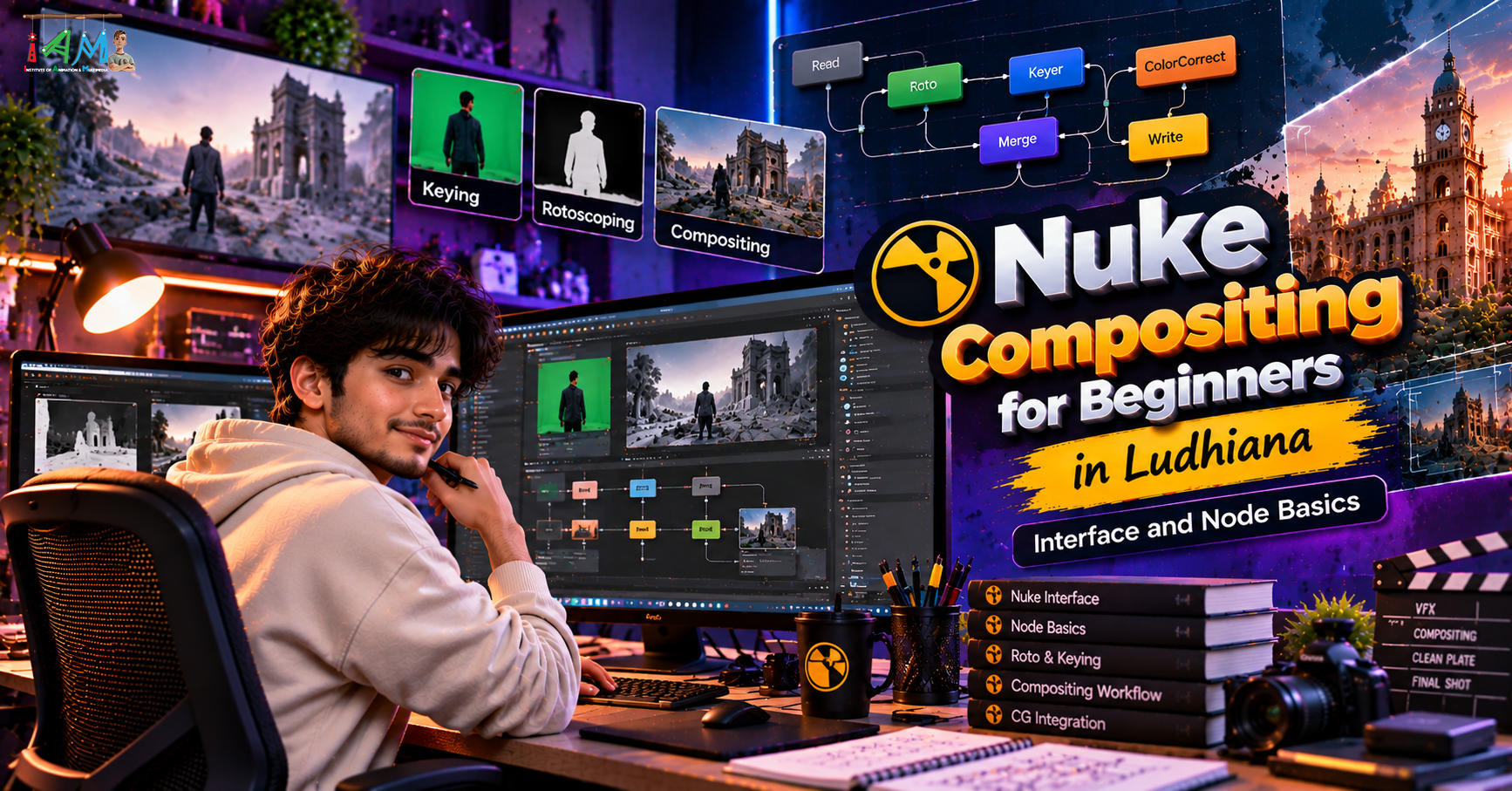
Nuke Compositing for Beginners in Ludhiana: Interface and Node Basics
A practical first look at Nuke for aspiring VFX artists in Punjab
If you live in Ludhiana and have ever wondered how a flat green-screen shot turns into a cinematic scene, the answer is usually compositing, and the industry-standard tool for it is Nuke by Foundry. Film and OTT studios across India, from Mumbai to Hyderabad, use Nuke for shot-level compositing. You no longer need to move to a big city just to start learning it. A decent computer, an internet connection and some patience are enough to begin.
This post walks you through the Nuke interface and the core node concepts you need before touching your first shot.
Why Nuke, and why start from Ludhiana?
Most beginners start with After Effects, which is layer-based. Nuke is node-based, meaning every operation (blur, colour correction, transform, merge) is a box you connect with lines. This looks scary for a day or two, then it starts to feel logical and clean.
Why it is worth learning:
Industry standard for feature films and series. Studios hiring compositors usually expect Nuke.
Non-destructive and traceable. You can see exactly how a final image was built and change any step later.
Remote-friendly. Many VFX studios now hire remote or freelance compositors, so your location matters far less than your showreel.
Free to learn. Foundry offers a Non-commercial edition for learning, with some restrictions (such as output resolution). Check Foundry's website for the current terms before you download.
For students in Ludhiana, this means you can build skills at home, join online communities, and apply to studios anywhere in India or abroad.
A quick tour of the Nuke interface
When you open Nuke, you see several panels. Here are the ones you will use on day one.
1. Node Graph (also called the DAG)
This is your main workspace, usually in the bottom-left. Every node you create appears here. You connect nodes by dragging from the output of one node to the input of the next. Think of it as a flowchart where image data flows from top to bottom.
2. Viewer
The top panel is where you see your image. Any node can be viewed by selecting it and pressing 1 on your keyboard, which connects it to the Viewer. You can zoom with the scroll wheel, pan with the middle mouse button, and check individual channels (R, G, B, A) using the channel buttons.
3. Properties panel
When you double-click a node, its settings open here, usually on the right. A Blur node, for example, shows its size and filter. A Grade node shows lift, gamma, gain and more.
4. Toolbar
The vertical strip on the left holds node categories: Image, Draw, Time, Channel, Colour, Filter, Keyer, Merge, Transform and more. You can click through these menus, but experienced artists mostly use the next tip instead.
5. Curve Editor and Dope Sheet
These tabs help you work with animation. The Curve Editor shows keyframes as graphs, and the Dope Sheet shows them as a timeline. You will need them once you start animating values.
6. Timeline and playback controls
At the bottom of the Viewer you will find the frame slider, playback buttons and frame range. Set the correct range for your shot early to avoid confusion later.
The most important beginner habit: the Tab key
In the Node Graph, press Tab, type the first few letters of any node name and press Enter. This creates the node instantly. Learn this first. Hunting through menus slows you down.
Core node basics
Read and Write
Read brings footage or images into Nuke. Press R in the Node Graph to open the file browser.
Write renders your final result to disk. Press W to create one.
Every script begins with a Read and ends with a Write.
Viewer node
The Viewer node is created automatically. Select any node and press a number key (1, 2, 3...) to plug it into a Viewer input. This lets you compare different stages of your work quickly.
Transform
Press T to create a Transform node. It moves, rotates and scales an image. You will use it constantly for placing elements into a shot.
Grade and ColorCorrect
Press G for Grade. It is the workhorse for matching the brightness and contrast of one element to another. Its key controls are:
Blackpoint / Whitepoint to set the range of the input
Lift to affect dark areas
Gain to affect bright areas
Gamma for midtones
A lot of good compositing is simply good colour matching.
Blur
Press B for Blur. Use it to soften edges, match a plate's focus or fake depth of field.
Merge
Press M for Merge, the node that combines two images. It has two main inputs:
B is the background
A is the foreground that goes over it
The default operation is over, which places A on top of B using its alpha channel. This is the heart of compositing: you are stacking elements to build one final image.
Roto and RotoPaint
Press O for Roto to draw shapes that create masks, and P for RotoPaint to paint, clone and fix areas. Cleaning up wires or removing small objects often starts here.
Keyers
For green-screen work, Nuke offers several keyers such as Keylight, Primatte and IBK. Keylight is a common starting point for beginners.
Understanding channels and alpha
An image in Nuke is not only red, green and blue. It also carries an alpha channel, which defines transparency. When you merge a foreground over a background, the alpha tells Nuke which parts are visible. If your edges look wrong or have dark fringes, the cause is often a premultiplication issue. You will learn the Premult and Unpremult nodes early, because they matter whenever you colour correct an element that has alpha.
Your first mini exercise
Try this simple setup to feel how nodes work:
Press R and load a background image.
Press R again and load a foreground image with transparency, such as a PNG with alpha.
Press T to add a Transform to the foreground and scale it down.
Press G to add a Grade after it and adjust it to match the background's mood.
Press M, connect the foreground to input A and the background to input B.
Select the Merge and press 1 to view it.
Press W to add a Write node and render a still.
Congratulations, you have built your first composite.
Useful shortcuts to memorise
Action
Shortcut
Create node by name
Tab
Read / Write
R / W
Transform / Grade / Blur / Merge
T / G / B / M
Roto / RotoPaint
O / P
Connect to Viewer
1, 2, 3...
Disable or enable a node
D
Save script
Ctrl + S
Copy / paste nodes
Ctrl + C / Ctrl + V
Tips for beginners learning in Ludhiana
Start with small shots. A 5-second clip teaches more than a huge project that never gets finished.
Keep your node graph tidy. Align nodes, use Backdrops and label important steps. Studios care about clean scripts.
Save often and use versioned filenames, like
shot01_v001.nk,shot01_v002.nk.Learn from free plates. Several VFX training sites and communities share practice footage.
Join online communities such as Nukepedia and active VFX forums or Discord groups to ask questions and see how others solve problems.
Check your hardware. Nuke runs best with a modern multi-core CPU, 16 GB of RAM or more, and a fast SSD. Check Foundry's current system requirements before installing.
Build a showreel early. Even three or four clean shots with a breakdown of your node graph can open doors to internships and freelance work.
Final thoughts
Nuke can feel intimidating at first, but the interface is built on a few simple ideas: footage comes in through Read nodes, passes through nodes that change it, merges with other elements, and goes out through a Write node. Once you are comfortable with the Node Graph, the Viewer, the Properties panel and a handful of nodes, you can begin tackling keying, rotoscoping, tracking and 3D compositing.
- Nuke Compositing
- Foundry Nuke
- Nuke Tutorial
- VFX Training
- Node-Based Compositing
- Compositing for Beginners
- Visual Effects
- Nuke in Ludhiana