Maya Rigging and Character Animation for Ludhiana Students
Design, AI & Marketing · Jaspreet · 25 October 2026
Learn Maya rigging and character animation step by step. From joints, IK/FK and skinning to walk cycles and a demo reel, this Ludhiana student guide shows you how to build a job-ready 3D animation portfolio.
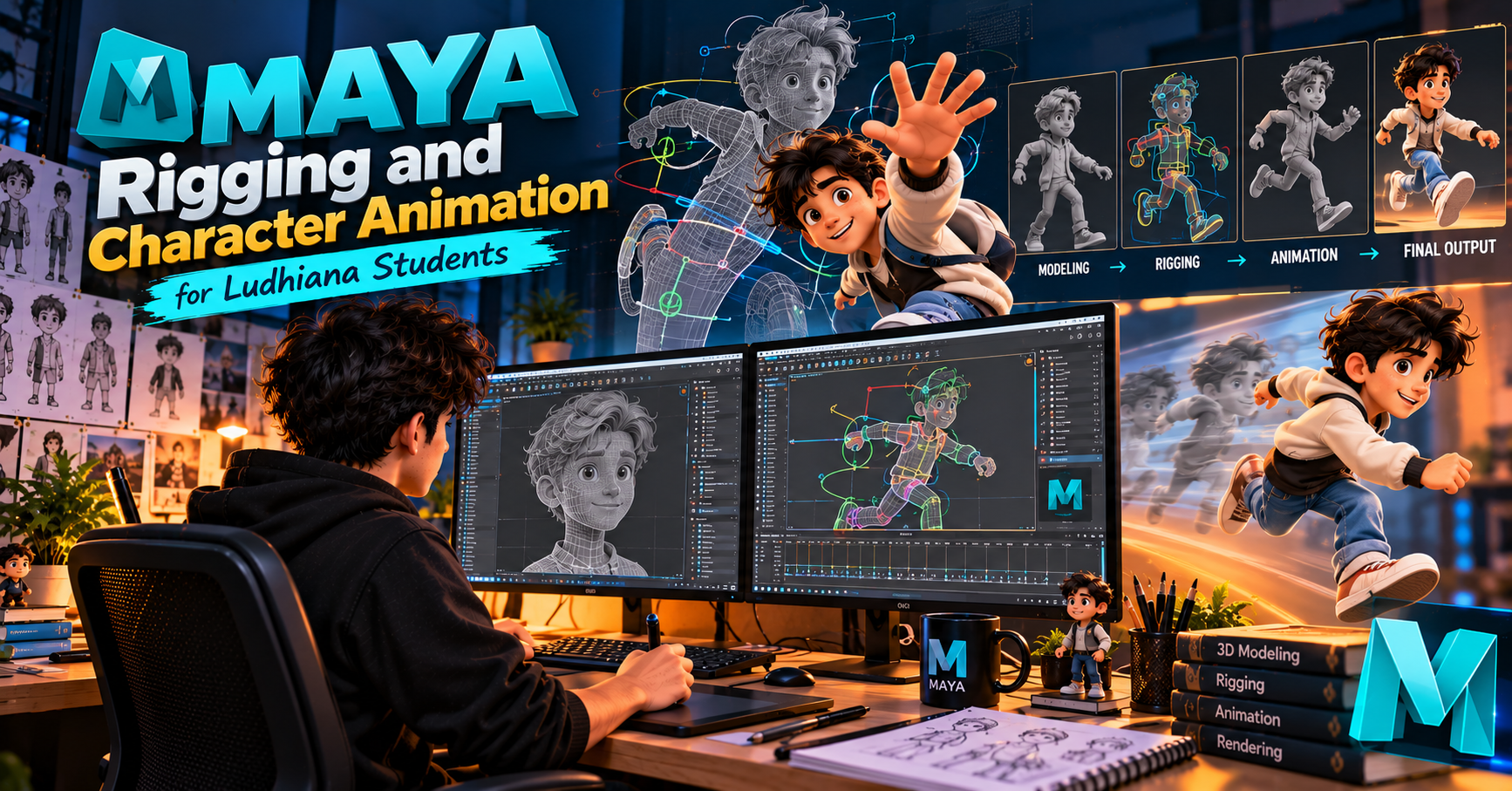
Maya Rigging and Character Animation for Ludhiana Students, Step by Step
If you’ve ever watched an animated character blink, walk, or throw a punch and wondered how it all works, the answer is rigging and animation. Modelling gives you a character, but without a rig, that character is a statue. Autodesk Maya is the industry-standard tool for bringing characters to life, and with the right roadmap, students in Ludhiana can build these skills without moving to a metro city.
This guide walks you through the full path, from your first joint to your first polished animation.
Why Learn Maya Rigging and Animation?
Studios in animation, VFX, gaming, and advertising rely on Maya for character work. Rigging (building the skeleton and controls) and animation (giving the character performance) are two of the most in-demand roles in the pipeline. They also reward patience and problem-solving, which makes them a great fit for students who like both art and logic.
For students in Ludhiana, the advantage is clear: you can start learning locally, build a strong portfolio, and apply to studios or freelance for clients across India and abroad.
Step 1: Get Comfortable with the Maya Interface
Before touching a rig, spend a week learning the basics:
Navigating the viewport (orbit, pan, zoom)
Working with the Outliner, Channel Box, and Attribute Editor
Understanding the difference between translate, rotate, and scale
Setting up projects and saving files properly
Tip: Learn the hotkeys early. Q, W, E, R for select, move, rotate, scale will save you hours.
Step 2: Understand Hierarchy and Pivots
Rigging is built on the idea of parent-child relationships. Practise by creating simple chains of objects, such as a robotic arm made of cubes, and notice how moving the parent moves the children. Learn to freeze transformations, delete history, and set pivot points, as these habits prevent most beginner errors later.
Step 3: Prepare Your Character Model
A rig is only as good as the model beneath it. Before rigging, check that your character has:
Clean quad-based topology
Edge loops around joints such as the elbows, knees, shoulders, and mouth
A neutral pose, typically a T-pose or A-pose
Symmetry, with the mesh centred at the origin
If you modelled your character in Blender or ZBrush, export it as FBX or OBJ and clean it up in Maya first.
Step 4: Build the Skeleton with Joints
Use the Joint Tool to create the bone structure:
Start with the spine and pelvis
Add the neck and head
Build the arms, ending in the hands and fingers
Add the legs, ending in the feet and toes
Name every joint clearly (for example, L_arm_shoulder_jnt, R_knee_jnt). Good naming makes your rig readable, and studios expect it. Use Orient Joints so that rotation axes behave consistently along each chain.
Step 5: Add IK and FK Controls
This is where rigging gets exciting.
FK (Forward Kinematics): you rotate each joint in sequence, which is great for arcs such as swinging arms.
IK (Inverse Kinematics): you move the end of the chain, such as a foot or hand, and the rest follows, which is ideal for planted feet and precise hand placement.
Set up IK handles for the legs and arms, then learn the IK/FK switch so animators can choose either. Add pole vectors to control knee and elbow direction.
Step 6: Create Control Curves
Animators never touch joints directly. They use clean, colour-coded NURBS curve controls. Create controls for:
The main character move (a root or master control)
The hips, spine, and head
The hands and feet
The fingers
Parent or constrain joints to these controls, then lock and hide any attributes that animators shouldn’t change. A tidy Channel Box is the sign of a professional rig.
Step 7: Skinning and Weight Painting
Skinning binds the mesh to the skeleton. Use Bind Skin and then refine with the Paint Skin Weights tool.
Common problems to fix:
Collapsing elbows and knees
Shoulder pinching when the arm is raised
Vertices influenced by the wrong joints
Test by rotating joints through extreme poses and painting weights until the deformation looks natural. This step takes patience, but it separates average rigs from great ones.
Step 8: Facial Rigging Basics
Once the body works, move to the face. Beginners can start with blend shapes for expressions such as smile, frown, blink, and brow raise, then add jaw and eye controls. Even a simple facial rig makes your animations far more expressive.
Step 9: Learn the 12 Principles of Animation
Before you animate, study the principles that every professional uses:
Squash and stretch
Anticipation
Staging
Straight-ahead and pose-to-pose
Follow-through and overlapping action
Slow in and slow out
Arcs
Secondary action
Timing
Exaggeration
Solid drawing
Appeal
These principles matter more than any software feature.
Step 10: Start with Simple Animation Exercises
Build skills gradually:
Bouncing ball: teaches timing, spacing, and squash and stretch
Ball with a tail: introduces overlapping action
Pendulum or flour sack: teaches weight and body mechanics
Walk cycle: the classic character test
Short acting shot: a few seconds of dialogue or emotion
Work in stepped (blocking) mode first, set your key poses, and only then move to spline and refine in the Graph Editor.
Step 11: Master the Graph Editor and Timeline
The Graph Editor is where animation gets polished. Learn to:
Read and adjust animation curves
Clean up unwanted keys
Fix popping and jittery motion
Use tangents for smooth ease-in and ease-out
Pair this with the Time Slider and Dope Sheet to manage your timing.
Step 12: Render and Present Your Work
Even a great animation needs good presentation. Learn basic lighting and use Arnold to render your shots. Export a clean video, then edit it into a short reel.
Building Your Portfolio
Recruiters look at your demo reel, not your certificates. Aim for:
A 30 to 60 second reel with only your best work
One rigged character shown with its controls
A walk cycle and at least one acting shot
A short breakdown showing wireframe or rig views
Upload your reel to platforms like YouTube, Vimeo, or ArtStation and keep it updated.
A Realistic Learning Timeline for Ludhiana Students
Months 1 to 2: Maya basics, hierarchy, and modelling fundamentals
Months 3 to 4: Skeleton, IK/FK, and control rigs
Months 5 to 6: Skinning, facial rigging, and animation principles
Months 7 to 9: Walk cycles, body mechanics, and acting
Months 10 to 12: Final portfolio project and reel polish
Consistency matters more than speed. Practising for even two hours a day will move you faster than occasional long sessions.
Tips to Learn Faster
Rig the same simple character more than once; repetition builds confidence
Study reference footage of real movement
Join online communities and ask for critiques
Learn basic Python or MEL scripting later to automate rigging tasks
Learn from a mentor or structured classroom programme if you want guided feedback
Career Paths After Learning Maya
Once you know rigging and character animation, you can aim for roles such as:
Character Rigger or Technical Artist
Character Animator
Game Animator
3D Generalist
Freelance animator for ads, explainers, and social content
Final Thoughts
Rigging and animation take time, but they’re among the most rewarding skills in 3D. Start small, follow the steps above, and keep making things. With steady practice and a strong reel, a student in Ludhiana can compete for opportunities anywhere.
Ready to start? Open Maya today, create your first joint chain, and take step one
- Maya
- Maya Rigging
- Character Animation
- 3D Animation
- Autodesk Maya
- Rigging Course
- Animation Course in Ludhiana
- Maya Course in Ludhiana