Maya for Beginners in Ludhiana
Animation & Gaming · Nandini · 24 October 2026
Learn Autodesk Maya for beginners in Ludhiana with this guide to understanding the interface, viewport navigation, essential shortcuts, and polygon modelling tools. Discover how to create simple 3D objects, practise modelling techniques, and build a strong foundation for a career in animation, VFX
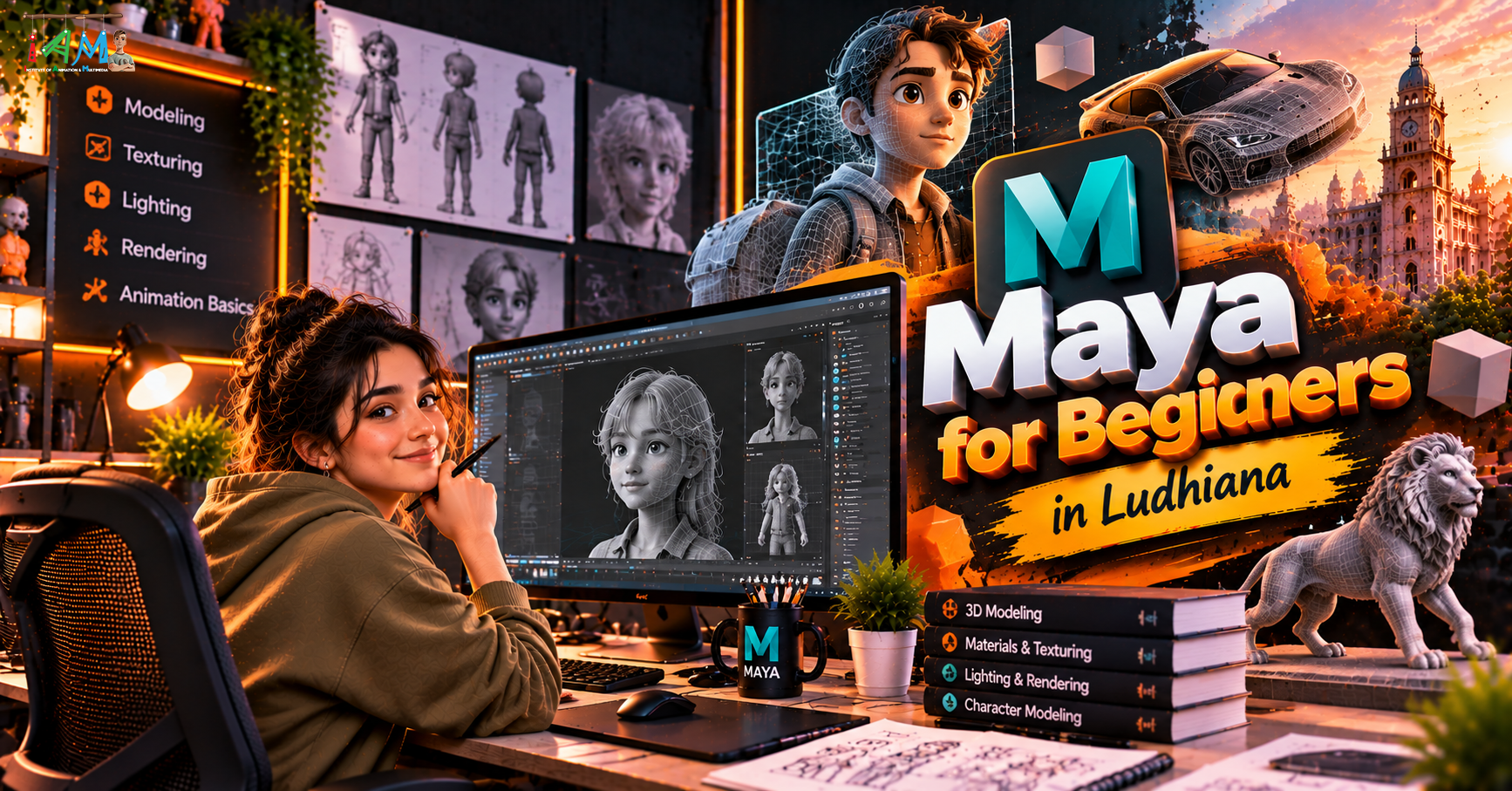
Maya for Beginners in Ludhiana: Interface and Polygon Modelling
If you’re in Ludhiana and curious about 3D animation, VFX, or game design, you’ve probably heard of Autodesk Maya. It is one of the most widely used 3D packages in animation studios, VFX houses, and game companies. The good news is that you don’t need to move to a metro city to start learning it. A decent computer, patience, and a clear learning path are enough.
This post covers the two things every beginner should learn first: finding your way around the Maya interface and the basics of polygon modelling.
Why Start with Maya?
Industry standard: Maya is used for modelling, rigging, animation, and effects in film, series, and games.
Strong career scope: Skills in modelling and animation open paths in animation studios, game development, advertising, architectural visualisation, and freelancing.
Learn once, apply widely: The concepts you pick up (polygons, UVs, rigging, rendering) carry over to Blender, 3ds Max, and other tools.
Part 1: Understanding the Maya Interface
When you first open Maya, the screen can feel crowded. Here is what each area does.
1. Menu Sets
At the top left is a drop-down with Modeling, Rigging, Animation, FX, and Rendering. Switching it changes the menus available. For this topic, stay on Modeling.
2. The Shelf
Below the menus is the Shelf, a row of icon shortcuts for common tools: creating primitives, polygon tools, and so on. Think of it as a quick-access toolbar.
3. The Viewport (Scene View)
This is your 3D workspace, where you see and edit your model. By default you see the Perspective view, and you can switch to a four-view layout (Top, Front, Side, Perspective) to model accurately.
4. Outliner
The Outliner lists every object in your scene. Get into the habit of naming your objects properly (for example, chair_leg_01 instead of pCube1). It saves a lot of confusion in bigger projects.
5. Channel Box / Attribute Editor
On the right side, you’ll see:
Channel Box: quick access to Translate, Rotate, Scale, and other values.
Attribute Editor: deeper settings for the selected object.
6. Time Slider and Range Slider
At the bottom, these control animation frames. You won’t need them for modelling, but you’ll use them heavily once you start animating.
7. Command Line and Help Line
The Command Line (bottom left) lets you type MEL or Python commands. The Help Line gives short hints about the tool you’re using.
Navigating the Viewport
Maya’s navigation uses the Alt key with the mouse:
ActionShortcutOrbit (rotate view)Alt + Left Mouse ButtonPanAlt + Middle Mouse ButtonZoomAlt + Right Mouse Button (or scroll wheel)Focus on selectionPress FFrame everythingPress A
Use a three-button mouse. Navigating with a laptop touchpad is painful, and a mouse will make your learning noticeably faster.
Essential Transform Hotkeys
Q: Select tool
W: Move
E: Rotate
R: Scale
Memorise these first. They’re the backbone of everything you’ll do.
Part 2: Polygon Modelling Basics
What Is a Polygon?
Most 3D models in Maya are built from polygons, flat surfaces made of connected points. A polygon model has three kinds of components:
Vertices: the points
Edges: the lines connecting points
Faces: the surfaces enclosed by edges
You can switch between component modes by right-clicking on the object and choosing Vertex, Edge, or Face. Or use the hotkeys F9 (Vertex), F10 (Edge), F11 (Face), and F8 to toggle between Object and Component mode.
Starting with Primitives
From the Create > Polygon Primitives menu, you can make:
Cube
Sphere
Cylinder
Cone
Plane
Torus
Almost every beginner model starts from one of these. A chair begins as a cube, a bottle as a cylinder, a table top as a flattened cube.
Key Polygon Modelling Tools
1. Extrude
Select a face, edge, or vertex and extrude it to pull out new geometry. This is the single most-used modelling tool. Select a face on a cube, extrude, and you have the beginning of a table leg.
2. Bevel
Bevel rounds off sharp edges. Real objects rarely have perfectly sharp corners, so bevelling makes models look more realistic because it catches light.
3. Insert Edge Loop
This adds extra edges around your model so you can add detail or control shape. More edge loops mean more control, but also more complexity.
4. Multi-Cut
A flexible tool for cutting new edges anywhere on your mesh. It replaces several older tools and is very beginner-friendly.
5. Merge and Bridge
Merge combines vertices or edges into one.
Bridge connects two openings with new faces.
6. Combine and Separate
Combine joins multiple objects into a single mesh; Separate does the opposite.
7. Smooth
Smooth subdivides your mesh to make it rounder. Use it carefully, since it multiplies the polygon count quickly.
Good Modelling Habits from Day One
Use quads (four-sided faces) wherever possible. Clean quad topology deforms and animates much better than messy geometry.
Avoid n-gons (faces with more than four sides) when you plan to animate.
Delete History (Edit > Delete All by Type > History) after finishing a stage.
Freeze Transformations (Modify > Freeze Transformations) so your object’s position and scale values reset to clean zeros.
Save often, and use Incremental Save so you can go back if something breaks.
A Simple Practice Project: Model a Wooden Stool
Try this after learning the basics:
Create a cylinder for the seat and scale it flat.
Create four thin cubes or cylinders for the legs.
Move and duplicate them (Ctrl + D) into position.
Bevel the seat edges for a softer look.
Add an edge loop on the legs and scale it slightly for a tapered shape.
Rename every object in the Outliner and group them.
Small projects like this teach you more than endless tutorials. Next, try a chair, a lamp, a coffee mug, or a simple room.
Common Beginner Mistakes
Skipping the interface and jumping straight to complex models
Modelling without using reference images
Ignoring clean topology and fixing it “later”
Leaving objects named
pCube1,pCube2, …Not saving versions of the project
Trying to learn rigging and animation before getting comfortable with modelling
Learning Maya in Ludhiana: What to Look For
Whether you learn online or at a local institute, pick a course that offers:
Hands-on practice instead of only theory
Project-based learning, where you build a portfolio piece, not just exercises
Clear coverage of modelling, UVs, texturing, rigging, animation, and rendering
Access to a capable system, because Maya is demanding on RAM, CPU, and GPU
Portfolio guidance, since studios hire based on your work, not certificates alone
Many students also pair formal classes with free tutorials and student licences from Autodesk. Check Autodesk’s education page for current eligibility and terms.
Final Thoughts
Maya feels overwhelming at first, but every professional artist started where you are now. Learn the interface, get comfortable navigating, and practise polygon modelling with small objects. Within a few weeks you’ll notice the tools becoming second nature
- Maya for Beginners
- Autodesk Maya
- 3D Modeling
- Maya Tutorial
- Animation Course
- VFX Training
- Polygon Modeling
- 3D Design in Ludhiana