Master the Pen Tool in Illustrator: Beginner to Advanced – Amritsar
Harman Phagwara · 24 November 2026
Master Adobe Illustrator’s Pen Tool with advanced path creation, precision curve control, anchor point editing, custom shape design, and professional vector illustration techniques through hands-on creative projects in Amritsar.
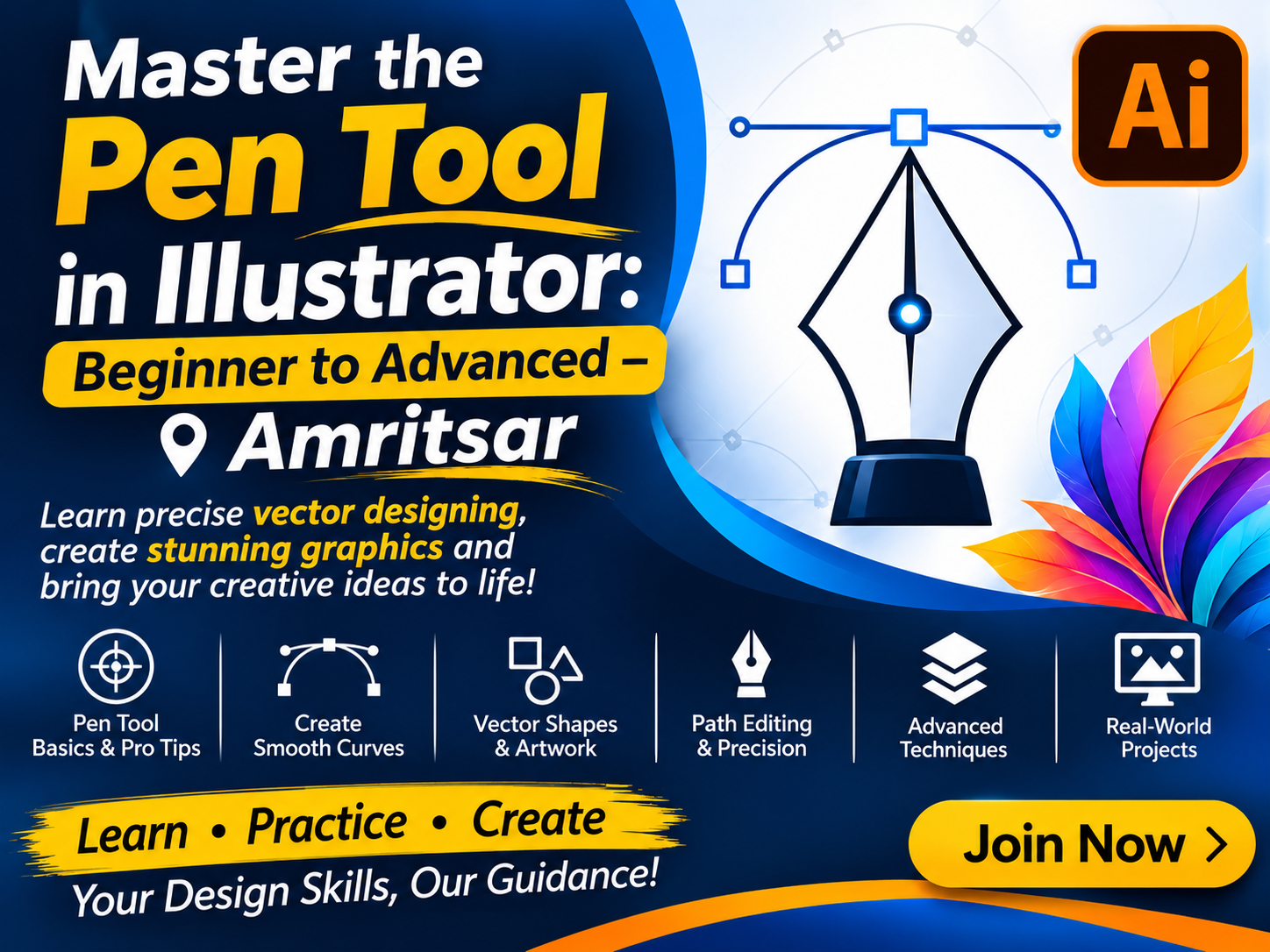
Master the Pen Tool in Illustrator: Beginner to Advanced – Amritsar
The Pen Tool is one of the most important tools in Adobe Illustrator for creating professional vector graphics, illustrations, logos, icons, and custom shapes. It allows designers to draw precise paths, create smooth curves, adjust anchor points, and develop detailed artwork. Learning how to use the Pen Tool effectively helps beginners understand vector drawing while allowing experienced designers to improve their accuracy and creative control.
Master the Pen Tool in Illustrator: Beginner to Advanced – Amritsar is a useful learning topic for aspiring graphic designers who want to develop practical vector illustration skills. Adobe Illustrator is widely used in graphic design, branding, digital illustration, logo creation, and print media. Its Pen Tool provides flexibility and precision for creating customised designs that can be resized without losing quality.
Understanding the Pen Tool in Adobe Illustrator
The Pen Tool allows designers to create paths by placing anchor points and controlling direction handles. These points connect to form straight lines, curved paths, and complex vector shapes.
Before creating professional illustrations, it is important to understand the basic elements of the Pen Tool:
Anchor Points: Define the starting, ending, and connecting positions of a path.
Direction Handles: Control the direction and smoothness of curved paths.
Straight Paths: Connect two anchor points with straight lines.
Curved Paths: Create smooth curves using direction handles.
Open Paths: Create lines or shapes that do not have connected endpoints.
Closed Paths: Connect the starting and ending points to form complete shapes.
Understanding these elements helps designers create accurate and controlled vector artwork.
Getting Started with the Illustrator Pen Tool
Adobe Illustrator provides several drawing and editing tools that work together with the Pen Tool. Beginners should first become familiar with the Illustrator workspace, toolbars, panels, artboards, layers, and selection options.
Some important tools used while working with the Pen Tool include:
Pen Tool: Creates straight and curved vector paths.
Add Anchor Point Tool: Adds additional points to an existing path.
Delete Anchor Point Tool: Removes unnecessary anchor points.
Anchor Point Tool: Converts corner points into smooth points and adjusts curves.
Direct Selection Tool: Selects and modifies individual anchor points.
Selection Tool: Moves, resizes, and transforms complete objects.
Curvature Tool: Creates and edits smooth curved paths more intuitively.
Learning how these tools work together helps designers create cleaner and more professional vector designs.
Creating Straight Lines and Basic Shapes
The first step in learning the Pen Tool is understanding how to create straight lines and simple geometric shapes. Beginners can start by placing anchor points on the artboard and connecting them to form different paths.
Practice exercises can include:
Creating horizontal and vertical lines
Drawing triangles and polygons
Creating custom geometric shapes
Designing simple icons
Tracing basic objects using reference images
These exercises help learners understand anchor point placement, path direction, and shape creation before moving towards advanced illustrations.
Mastering Curves and Anchor Points
Creating smooth curves is one of the most important skills when working with the Illustrator Pen Tool. By clicking and dragging while placing anchor points, designers can create direction handles that control the shape and flow of curves.
Important curve-editing techniques include:
Creating smooth curves using direction handles
Adjusting curve angles and handle lengths
Converting smooth points into corner points
Editing existing paths without changing the complete design
Removing unnecessary anchor points
Creating symmetrical and balanced curves
Practising these techniques helps designers achieve smoother outlines and more accurate illustrations.
Tracing Images and Creating Vector Artwork
Image tracing is a useful practical exercise for understanding how the Pen Tool works. Designers can import reference images into Illustrator and manually trace their outlines to create clean vector versions.
Different tracing projects can include:
Logo Tracing: Recreate simple logos using anchor points, straight paths, and curves.
Object Tracing: Convert everyday objects into vector illustrations by following their outlines.
Portrait Tracing: Practise drawing facial outlines, hair shapes, and other details using controlled curves.
Product Illustration: Create vector versions of bottles, gadgets, packaging, and other products.
Icon Creation: Design simple icons for websites, mobile applications, and promotional materials.
These activities help learners develop precision, observation, and confidence in vector drawing.
Creating Professional Vector Illustrations
Once the basic Pen Tool techniques are understood, designers can move towards more detailed and creative illustrations. Adobe Illustrator offers multiple features that help combine paths, modify shapes, and improve the overall appearance of vector artwork.
Some important techniques include:
Combining multiple paths to create complex illustrations
Using Pathfinder to merge and divide shapes
Applying fills, strokes, and gradients
Creating custom shapes using anchor point adjustments
Designing line art and outline illustrations
Developing scalable vector graphics
Using layers to organise complex artwork
These techniques help designers transform basic paths into complete professional illustrations.
Working with Colours, Strokes and Gradients
Colour and stroke selection play an important role in making vector illustrations attractive and visually balanced. After creating paths with the Pen Tool, designers can apply different fills, outlines, and colour effects.
For example, flat colours can create simple modern illustrations, while gradients can add depth and dimension. Different stroke widths can also help highlight outlines and important design elements.
Designers should understand colour combinations, contrast, stroke consistency, and gradient placement to produce visually appealing vector artwork.
Common Pen Tool Mistakes and How to Avoid Them
Beginners often face difficulties while creating smooth paths and managing anchor points. Understanding common mistakes can help improve drawing accuracy.
Some common mistakes include:
Adding too many anchor points to a single path
Creating uneven curves with incorrect direction handles
Placing anchor points at unnecessary positions
Making sharp corners where smooth curves are required
Leaving unwanted gaps in closed shapes
Ignoring path alignment and symmetry
Practising with fewer and properly positioned anchor points helps create cleaner paths and improves the quality of vector illustrations.
Practical Illustrator Pen Tool Projects
Practical projects help learners understand how to apply Pen Tool techniques to real creative requirements. Instead of only learning individual tools, students can practise creating complete vector designs.
Some useful practice projects include:
Creating a custom logo using the Pen Tool
Designing vector icons for websites
Tracing a product image into vector artwork
Creating minimal line art illustrations
Drawing cartoon characters and creative shapes
Designing vector portraits
Creating decorative illustrations for posters
Developing a collection of custom vector graphics
These projects help develop drawing accuracy, creativity, shape construction, and professional design skills.
Career Opportunities in Vector Illustration and Graphic Design
Pen Tool skills are useful in different areas of graphic design, digital illustration, and visual communication. Businesses, advertising agencies, design studios, and creative professionals use vector graphics for branding and promotional materials.
After developing Adobe Illustrator skills, learners can explore opportunities such as:
Graphic Designer
Vector Illustrator
Logo Designer
Digital Illustration Artist
Branding and Identity Designer
Print Media Designer
Freelance Graphic Designer
Creative Design Assistant
With experience, designers can also work on packaging designs, brochures, social media graphics, icons, typography, and other creative projects.
Learn Adobe Illustrator and Pen Tool Designing in Amritsar with IAM
Learning Adobe Illustrator can help aspiring designers understand the process of creating professional vector artwork, from basic path creation to advanced illustrations. Practical knowledge of anchor points, curve adjustments, shape creation, colour combinations, and vector editing can support learners who want to develop skills in the graphic design industry.
At IAM Amritsar, students interested in graphic design can explore creative design concepts and software-based skills through practical learning. Understanding how to use the Pen Tool for logo creation, image tracing, custom shapes, and vector illustrations can help learners build confidence and develop a professional design portfolio.
Start learning Adobe Illustrator, master the Pen Tool, and take your first step towards creating professional vector illustrations and creative graphic design projects.