
How to Prepare Print-Ready Files in CorelDRAW: A Checklist
Design, AI & Marketing · Harman Phagwara · 22 October 2026
Learn how to prepare print-ready files in CorelDRAW with this practical checklist covering page setup, CMYK colours, bleed, image resolution, fonts, margins, and PDF export. Prepare professional artwork for business cards, brochures, flyers, posters, and other print projects.
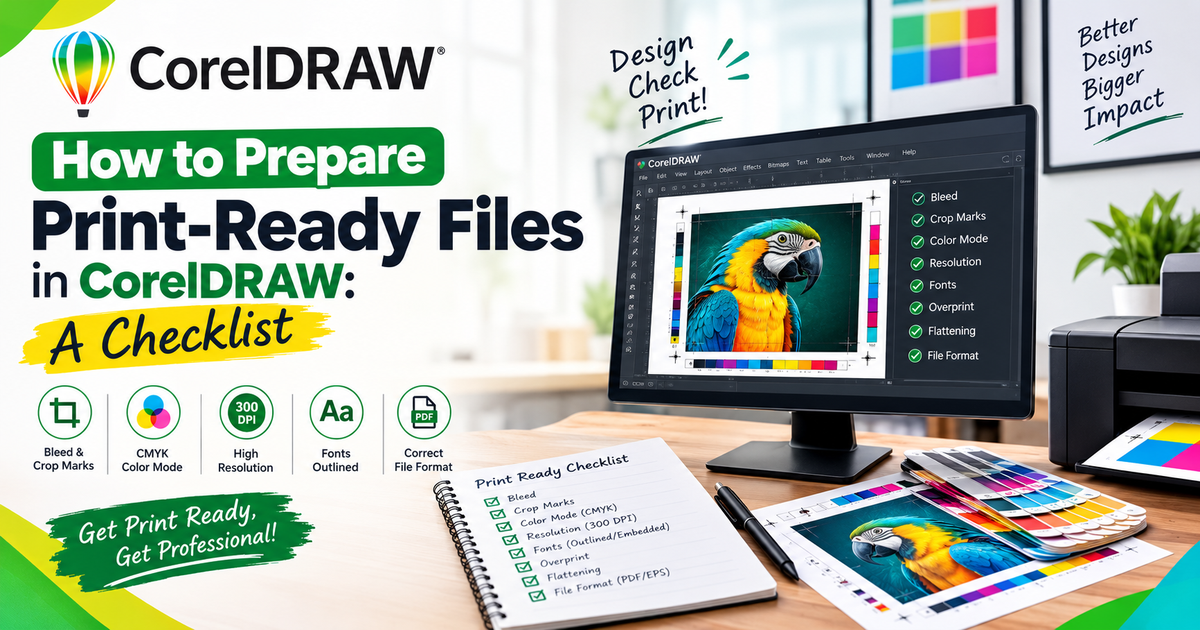
How to Prepare Print-Ready Files in CorelDRAW: A Checklist
Preparing print-ready files in CorelDRAW is an essential skill for graphic designers, printing professionals, and students learning graphic design. A well-prepared file helps ensure that printed materials maintain the correct dimensions, colours, image quality, and layout.
Whether you are designing business cards, brochures, flyers, banners, or posters, checking your artwork before sending it to a printing press can help prevent common printing errors.
What Does Print-Ready Mean?
A print-ready file is a design document prepared according to the printing requirements of a specific project. It includes the correct page size, suitable colour settings, adequate image resolution, proper bleed, readable typography, and an appropriate export format.
Printing requirements may vary depending on the printer, paper type, finishing process, and printing method. Always confirm the specifications with your printing service before finalising the artwork.
Print-Ready CorelDRAW Checklist
Set the Correct Document Size
Start by setting the page dimensions according to the final printed product. For example, create the document at the required business card, A4 flyer, brochure, or poster size.
Check the page orientation and measurement units before beginning the design. Avoid resizing the artwork at the last minute, as this may affect image quality and layout.
Use the Appropriate Colour Mode
Commercial printing commonly uses CMYK colour, while RGB is generally used for digital screens. If the printer specifies CMYK, configure the document and objects accordingly.
Keep in mind that colours can appear different on screen and in print. A colour profile and a printed proof can help you evaluate the expected output.
Add Bleed to the Artwork
Bleed is the extra artwork extending beyond the final trim edge. It helps prevent unwanted white edges if the printed sheet is trimmed slightly off position.
A common bleed requirement is 3 mm, but the exact amount depends on the printer and product. Extend background colours and images into the bleed area while keeping important text and logos safely inside the trim line.
Check Margins and Safe Areas
Keep important content away from the cutting edges. Text, logos, contact information, and other essential elements should remain within the recommended safe area.
Review the layout at actual size to ensure that no critical content is too close to the edge.
Verify Image Resolution
Use sufficiently high-resolution images for the intended print size. Images around 300 DPI at final size are commonly suitable for close-viewed printed materials, although large-format graphics may require different specifications.
Avoid enlarging small, low-resolution images excessively. Inspect photographs, logos, and placed graphics for pixelation or blurriness before export.
Check Fonts and Typography
Proofread all text for spelling mistakes, incorrect phone numbers, missing information, and inconsistent formatting.
Where appropriate, convert text to curves in CorelDRAW or embed fonts in the exported PDF, depending on the printer's requirements. Keep an editable copy of the original file before converting text to curves.
Inspect Objects, Links, and Effects
Check that all images and linked resources are available. Review transparency, shadows, gradients, outlines, and overlapping objects to ensure they display correctly.
Remove unwanted hidden objects, accidental marks, unused elements, and stray objects outside the page that could interfere with output.
Export the Correct PDF
PDF is a widely used format for sending artwork to commercial printers. Select the PDF preset or export settings recommended by the printing service.
Check whether the printer requires PDF/X compatibility, bleed settings, crop marks, embedded fonts, or a specific colour profile. Do not add crop marks or change colour settings unless they match the printer's instructions.
Proofread and Review the Final File
Before sending the design, inspect the exported PDF rather than relying only on the editable CorelDRAW document.
Check page dimensions, artwork placement, colours, text, image quality, bleed, and page count. Request a digital or physical proof when appropriate, especially for large orders or colour-sensitive projects.
Common Mistakes to Avoid
Designing at the wrong page size.
Forgetting to include bleed.
Using low-resolution images.
Leaving important content too close to trim edges.
Sending RGB artwork when the printer requires CMYK.
Missing fonts or incorrectly displayed text.
Exporting with unsuitable PDF settings.
Failing to inspect the final exported file.
Final Print-Ready Checklist
Before submitting your CorelDRAW design, confirm the following:
Document dimensions match the printer's specifications.
Colour settings and profiles meet the printing requirements.
Bleed and safe margins are correctly configured.
Images have suitable resolution.
Fonts and text have been checked.
Objects, transparency, and effects display correctly.
PDF export settings match the printer's requirements.
The final PDF has been opened and reviewed.
Conclusion
Preparing print-ready files in CorelDRAW involves more than simply exporting a design as a PDF. Correct document setup, colour management, bleed, image quality, typography, and final file inspection all contribute to a reliable printing workflow.
By following this checklist and confirming the specifications with your printing service, you can reduce common production errors and prepare professional artwork for a wide range of print projects.
- CorelDRAW
- Graphic Design
- Print Design
- Print-Ready Files
- Printing Checklist
- CMYK Color Mode
- Bleed Setup
- PDF Export, Prepress