How to Design a Professional Logo in Illustrator, Step by Step
Design, AI & Marketing · Jaspreet · 22 October 2026
Want to create a logo that looks professional and works everywhere ? This step - by - step guide walks you through designing one in Adobe Illustrator , from sketching ideas and building shapes to choosing type and colour , stress - testing your design , and exporting the final files .
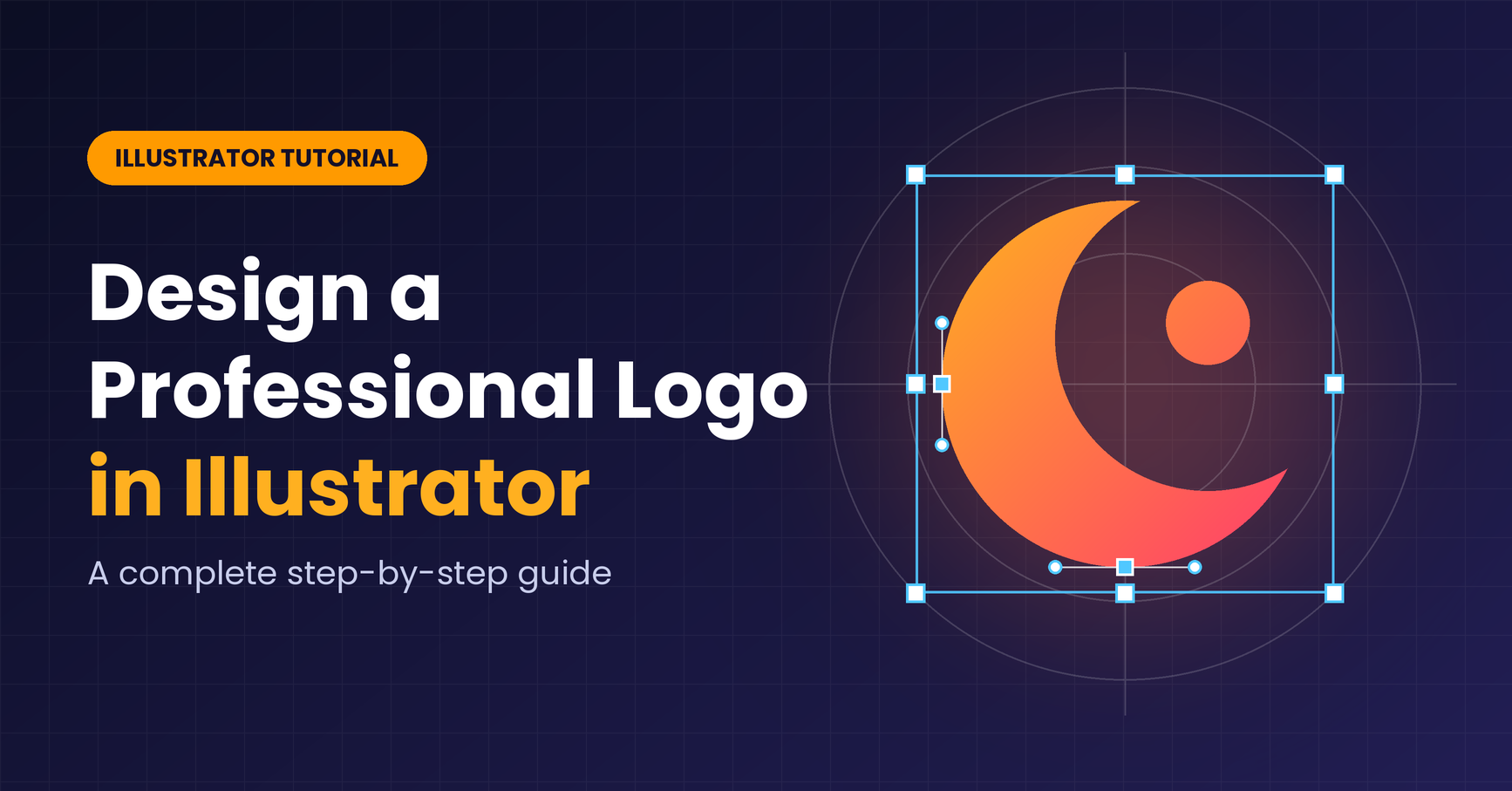
How to Design a Professional Logo in Illustrator, Step by Step
A great logo looks effortless, but it is rarely an accident. Behind every clean, memorable mark is a process: research, sketching, careful construction and thorough testing. Adobe Illustrator is the industry-standard tool for that job because it is vector-based, which means your logo stays perfectly sharp whether it appears on a favicon or a billboard.
In this guide, you will walk through the full workflow I recommend, from a blank page to a finished, export-ready logo package.
Before You Open Illustrator: Do the Thinking First
The biggest mistake beginners make is jumping straight into the software. Spend 20 to 30 minutes on these questions first:
What does the brand do, and for whom? A children's toy shop and a law firm need very different visual personalities.
What three words should the logo communicate? For example: trustworthy, modern, warm.
Who are the competitors, and what do their logos look like? You want to be recognisable in your category but distinct from the pack.
Where will the logo appear? Social avatars, packaging, signage, letterheads and websites all place different demands on it.
Write your answers down. They become the brief you check your design against later.
Step 1: Sketch Ideas on Paper
Grab a pencil and fill a page with small, rough thumbnails. Aim for at least 20 to 30 ideas without judging them. Try wordmarks (just the name in styled type), lettermarks (initials), symbols, and combinations of symbol and text.
Circle the three or four strongest directions. Sketching is faster than clicking around in software, and it keeps you from getting attached to your first idea.
Step 2: Set Up Your Illustrator Document
Go to File > New and choose a print or web preset. Size does not matter much for vectors, but 1000 x 1000 px is a handy working size.
Pick the colour mode. Start in RGB for digital-first brands, or CMYK if print is the priority. You can convert later, but colours may shift.
Turn on helpers: View > Show Grid, View > Smart Guides (Ctrl/Cmd + U) and View > Rulers (Ctrl/Cmd + R).
Open the Layers panel and create separate layers for your sketch, construction guides and final artwork.
If you have a scanned sketch, place it with File > Place, lower its opacity, and lock that layer so you can trace over it.
Step 3: Build the Core Shapes
Most professional logos are built from simple geometry rather than freehand drawing. Illustrator gives you the tools to do this precisely.
Shape tools (Rectangle, Ellipse, Polygon) for the basic building blocks. Hold Shift to keep proportions.
Pen tool (P) for custom curves and angles. Use as few anchor points as you can, since fewer points produce smoother curves.
Shape Builder tool (Shift + M) to merge, subtract and intersect overlapping shapes by dragging across them. It is the fastest way to create unique forms from circles and squares.
Pathfinder panel for precise Unite, Minus Front, Intersect and Exclude operations.
Live Corners (the small circle widgets on shape corners) to round corners consistently.
A useful trick is to build your mark from circles and straight lines that share common radii. This gives the design an underlying logic that viewers feel even if they cannot explain it.
Step 4: Choose and Customise Typography
Type carries as much personality as any symbol. Keep these principles in mind:
Limit yourself to one or two typefaces. Pairing a distinctive display font for the name with a quiet sans-serif for a tagline works well.
Check the licence. Make sure you have the rights to use a font in a commercial logo. Adobe Fonts and many open-source libraries make this straightforward.
Adjust spacing by eye. Use kerning (the space between specific letter pairs) and tracking (overall spacing) in the Character panel. Uneven gaps are one of the quickest giveaways of an amateur logo.
Customise a letter or two. Cutting, joining or extending one character makes a standard font feel custom.
When the type is final, convert it to shapes with Type > Create Outlines (Shift + Ctrl/Cmd + O). This prevents font problems when you share the file. Save an editable copy first.
Step 5: Refine with a Grid and Alignment
Now polish the construction:
Use the Align panel to centre and distribute elements precisely.
Snap key points to the grid so angles, stroke weights and spacing stay consistent.
Zoom in to 800% or more and check every join and curve for kinks or tiny gaps.
Use Object > Path > Offset Path to create consistent outlines and margins.
Check optical balance. Mathematically centred is not always visually centred, so nudge shapes until they feel balanced.
Some designers overlay circles based on the golden ratio to guide proportions. It is optional, but it can help when you are stuck.
Step 6: Apply Colour Thoughtfully
Colour sets mood instantly: blue suggests trust, green growth, red energy, black sophistication. Still, resist the urge to use many colours.
Start your design in black and white. If it does not work in one colour, colour will not rescue it.
Limit your palette to two or three colours.
Build swatches in the Swatches panel and name them, so the palette stays consistent across files.
Use Edit > Edit Colors > Recolor Artwork to test alternative palettes quickly.
Check contrast. Your logo should remain legible on both light and dark backgrounds.
Step 7: Stress-Test the Design
A professional logo has to survive real-world conditions. Test it at:
Tiny sizes (around 32 px or 16 px), as for a favicon or app icon. If the details vanish, simplify.
Large sizes, to catch any rough edges.
One colour, reversed (white on dark), and in greyscale.
Mockups on a business card, website header, social avatar and packaging.
Then ask a few people for a five-second reaction. Do they remember it? Does it match the three words from your brief? Take feedback on board, but filter it against the original goals.
Step 8: Create Logo Variations
Clients and brands need flexibility. Prepare a small system of versions:
Primary logo (full version)
Horizontal and stacked layouts
Icon or symbol only, for avatars and small spaces
One-colour, black, and white (reversed) versions
Place each on its own artboard so everything lives neatly in a single file.
Step 9: Clean Up and Export
Before exporting, tidy the file:
Delete stray points (Select > Object > Stray Points) and hidden or unused objects.
Name your layers and artboards clearly.
Convert strokes to shapes where needed with Object > Path > Outline Stroke.
Then export the right formats:
Format
Best for
AI
Master editable source file
SVG
Websites and scalable digital use
Print and sharing with printers
PNG (transparent)
Social media, presentations, quick use
JPG
Simple backgrounds, previews
Use File > Export > Export for Screens to produce several sizes and formats in one go.
Common Logo Design Mistakes to Avoid
Too much detail. If it will not work small, it is too complicated.
Trendy effects. Gradients, shadows and bevels date quickly and reproduce poorly.
Too many fonts or colours. Restraint looks more professional.
Copying other brands. Always check originality before finalising.
Skipping the black-and-white test. Strong logos work without colour.
Final Thoughts
Designing a professional logo in Illustrator is less about mastering every tool and more about following a disciplined process: understand the brand, sketch widely, build with simple geometry, refine the details, and test hard. Practise this workflow a few times and your speed and quality will rise noticeably.
Finally, the best way to learn is by doing. Pick a fictional brand, work through each step above, and add the result to your portfolio. Happy designing!
- Illustrator
- Logo Design
- Adobe Illustrator
- Graphic Design
- Branding
- Brand IdentityBrand Identity
- Illustrator Tutorial
- Design Tips