How to Animate Text and Logos in After Effects: Ludhiana Tutorial
Design, AI & Marketing · Jaspreet · 29 October 2026
Learn how to animate text and logos in After Effects with this beginner-friendly Ludhiana tutorial. Follow simple steps for keyframes, text animators, logo reveals and export, and build motion graphics skills for your portfolio.
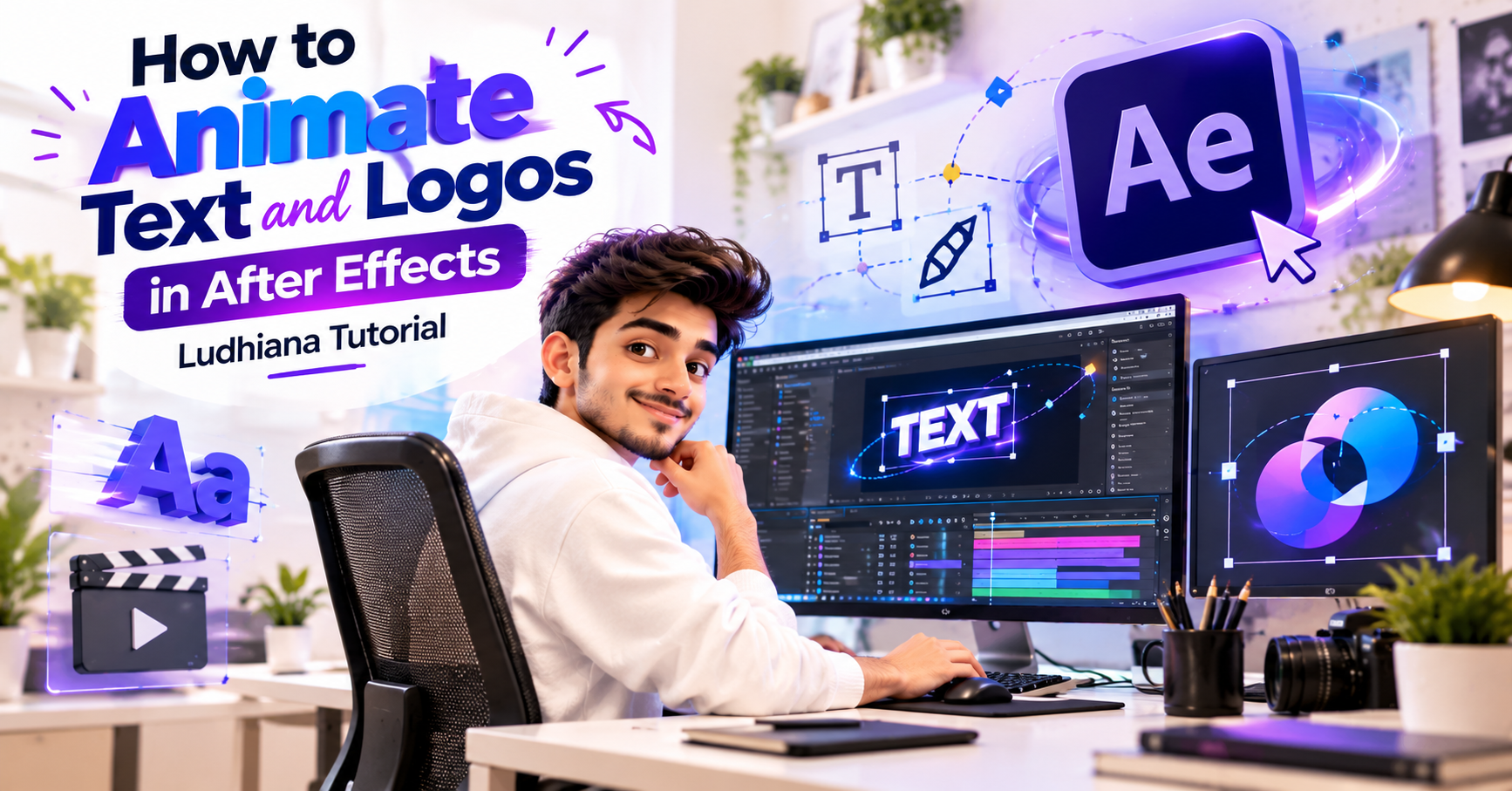
How to Animate Text and Logos in After Effects: Ludhiana Tutorial, Step by Step
If you have ever watched a YouTube intro, a brand reel or an Instagram ad and wondered how the title slides in so smoothly, the answer is almost always Adobe After Effects. Text and logo animation is the first skill every motion graphics beginner should learn. It is also one of the most in-demand skills for freelancers and agencies, and many Ludhiana businesses now need it for reels, shop promos and product videos.
This tutorial shows you how to animate text and logos in After Effects, step by step. It is written for beginners and for students in Ludhiana who want to start building a motion graphics portfolio.
Why Learn Text and Logo Animation?
Almost every video needs animated text. Think of wedding films, real estate walkthroughs, YouTube channels, corporate videos and festival offers on social media. Local businesses in Ludhiana (garment brands, hosiery exporters, restaurants, coaching institutes, gyms) want branded videos with moving titles and logo reveals.
Once you can animate text and logos well, you can:
Create YouTube and Instagram intros
Make lower thirds and title cards for videos
Build logo stings for brands
Offer motion graphics services as a freelancer
What You Need Before You Start
Adobe After Effects (a recent version is best)
A computer with at least 16 GB RAM for smooth previews
Your logo as an AI, SVG or transparent PNG file (vector files give the cleanest results)
A font you like for the text
Part 1: Animating Text in After Effects
Step 1: Create a New Composition
Go to Composition > New Composition. For social media, use 1920×1080 at 25 or 30 fps. For Instagram Reels, use 1080×1920. Set the duration to around 5 seconds and click OK.
Step 2: Add Your Text
Press Ctrl+T (Cmd+T on Mac) to select the Type tool, click in the composition and type your text. Use the Character panel to set the font, size and colour. Keep it bold and readable. Thin fonts often look weak when animated.
Step 3: Animate the Basics with Keyframes
Select the text layer and press P to open Position. Move the playhead to 0 seconds and click the stopwatch to set a keyframe. Move forward 1 second and drag the text to its final spot. After Effects creates the movement between the two points.
Next, press Shift+T to add Opacity. Set it to 0% at the start and 100% a few frames later, so the text fades in as it moves.
Step 4: Smooth the Motion with Easy Ease
Select all your keyframes and press F9 to apply Easy Ease. This one shortcut makes animation feel natural instead of robotic. For more control, open the Graph Editor and adjust the speed curves. Fast start and slow finish is a popular look for titles.
Step 5: Use Text Animators for Letter-by-Letter Effects
This is where text animation gets exciting. Expand the text layer, click Animate and choose a property such as Position, Scale, Opacity or Rotation. Then use the Range Selector to control which letters are affected.
For a classic typewriter or cascading reveal:
Add an Opacity animator and set it to 0%.
Animate the Range Selector’s Start value from 0% to 100%.
Under Advanced, try the Based On options and a smooth Shape for a softer reveal.
You can stack several animators, such as Position, Scale and Blur, to create rich titles that feel professional.
Step 6: Try Built-In Text Presets
Open Window > Effects & Presets and search “Text”. After Effects includes many ready-made animation presets. Drag one onto your text layer and study its keyframes. Reverse-engineering presets is one of the fastest ways to learn.
Part 2: Animating a Logo in After Effects
Step 7: Import Your Logo
Drag your logo file into the Project panel and then into your composition. If you are using an Illustrator file, right-click the layer and choose Create Shapes from Vector Layer. This turns your logo into editable shape layers, so you can animate each part separately.
Step 8: Simple Logo Reveal with Scale and Opacity
For a clean, professional logo animation:
Press S for Scale and set a keyframe at 0% at the start.
Animate it up to 100%, then slightly overshoot (for example to 108%) and settle back at 100% for a gentle bounce.
Add opacity keyframes so the logo fades in during the first few frames.
Apply Easy Ease to everything.
Step 9: Draw-On Effect with Trim Paths
If your logo has outlines, use Trim Paths on the shape layer. Animate End from 0% to 100% and the logo appears to draw itself. After the outline finishes, fade in the fill colour. This is a favourite effect for modern brand intros.
Step 10: Add a Shine or Light Sweep
Create a new solid or shape with a white gradient, place it over the logo and animate it moving across. Set the blend mode to Add or Overlay and use your logo as a Track Matte so the shine only appears on the logo. It adds a polished, premium touch.
Step 11: Organise with Pre-compose and Null Objects
When your logo has many layers, select them and press Ctrl+Shift+C to pre-compose. You can also create a Null Object and parent layers to it, so one control moves the entire logo. This keeps projects tidy and makes edits fast.
Part 3: Add Background, Sound and Final Touches
Step 12: Build a Simple Background
Use a solid colour, a gradient or a subtle texture. Add a slight Drop Shadow or Glow to make text and logos stand out. Avoid overusing effects; clean design looks more professional.
Step 13: Add Sound Effects and Music
Motion feels stronger with sound. Add a soft whoosh when text slides in and a hit or chime when the logo lands. Even simple sound design lifts a beginner project to a professional level.
Step 14: Export Your Animation
Go to Composition > Add to Adobe Media Encoder Queue (or the Render Queue) and export as H.264 for YouTube and social media. If you need a transparent background to place the logo over other videos, export with an alpha channel using Apple ProRes 4444.
Common Mistakes Beginners Make
Skipping Easy Ease, which makes motion look stiff
Overcomplicating the animation instead of keeping it clean
Using low-resolution logos, which look blurry when scaled
Too many effects, which distract from the message
Not saving or organising layers and folders
Practice Ideas for Your Portfolio
To build real skills, try these mini projects:
A 5-second YouTube channel intro
A logo reveal for a local business
A lower third for an interview video
An animated festival offer or sale banner
A kinetic typography clip with a quote or song title
Five to eight polished pieces of this kind make a strong starter reel.
Learn After Effects in Ludhiana
Tutorials are a great start, but practising with mentors, live projects and feedback speeds up your growth. If you are in Ludhiana and want to build a career in motion graphics, VFX or video editing, choose a training programme that covers After Effects along with Premiere Pro, Photoshop and Illustrator, includes hands-on projects and helps you build a portfolio.
Final Thoughts
Animating text and logos in After Effects comes down to a few core skills: keyframes, easing, text animators, shape layers and good organisation. Practise a little every day, study motion you admire and keep your designs simple and polished. In a few weeks you will be creating titles and logo reveals that look agency-ready.
Ready to start? Open After Effects, type your name, and animate it today.
- After Effects
- After Effects course in Ludhiana
- Motion Graphics
- Text animation
- Logo animation
- Video Editing
- Animation Course
- Ludhiana