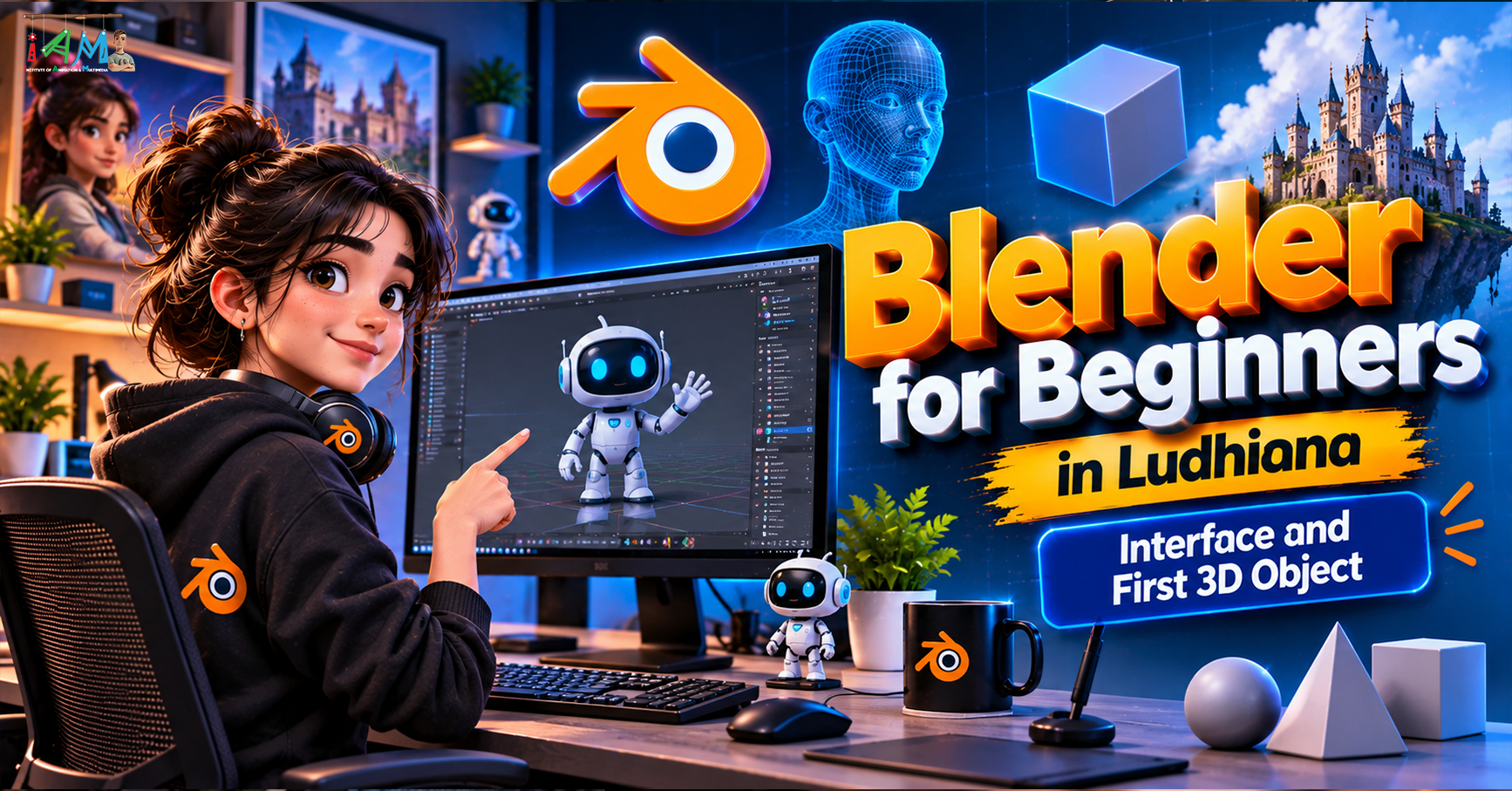
Blender for Beginners in Ludhiana: Interface and First 3D Object
Animation & Gaming · Nandini · 23 October 2026
Learn Blender for beginners in Ludhiana and explore the world of 3D modeling, animation, and visual effects. Discover Blender’s interface, essential shortcuts, and step-by-step techniques to create your first 3D object and begin your creative journey.
Blender for Beginners in Ludhiana: Interface and First 3D Object
Introduction
The world of 3D design is growing rapidly, creating exciting opportunities in animation, gaming, visual effects, architecture, product visualization, and digital content creation. If you are interested in entering the creative industry, learning Blender is an excellent place to start. For students and aspiring designers looking for Blender for beginners in Ludhiana, understanding the software interface and creating your first 3D object are the first steps toward developing practical 3D design skills.
Blender is a powerful, free, and open-source 3D creation software used by beginners, freelancers, professional artists, and animation studios. It allows users to create 3D models, animations, visual effects, realistic renders, and interactive digital scenes. The best part is that you can begin learning Blender without investing in expensive software licenses.
In this beginner-friendly guide, we will explore Blender's interface, essential tools, basic navigation, and the process of creating your first 3D object.
What Is Blender?
Blender is a free 3D creation application that supports the complete 3D production workflow, including modeling, texturing, lighting, animation, rendering, and compositing. Its extensive features make it suitable for both beginners and experienced professionals.
Unlike many paid 3D applications, Blender is available without a software subscription fee, making it accessible to students and aspiring designers.
With Blender, you can create:
3D characters for animation and games.
Product models for advertising and e-commerce.
Environments and backgrounds for films.
Architectural visualizations and interior scenes.
Motion graphics and animated titles.
Visual effects and realistic digital environments.
For students exploring a Blender course in Ludhiana, learning the fundamentals of 3D modeling provides a strong foundation for advanced animation, VFX, and game design projects.
Understanding the Blender Interface
When you first open Blender, the interface may look complicated. However, once you understand its main sections, working with the software becomes much easier.
1. 3D Viewport
The 3D Viewport is the central workspace where you create, view, and edit objects. It displays your models and allows you to rotate, move, scale, and modify them.
You can use the viewport to inspect an object from different angles and work on its shape.
Important shortcut: Press the middle mouse button and move your mouse to orbit around the scene. Use the scroll wheel to zoom in and out.
2. Toolbar
The Toolbar contains commonly used tools for manipulating objects. You can select tools to move, rotate, scale, or transform objects within the 3D Viewport.
Beginners should focus on three essential transformations:
Move (G): Changes an object's position.
Rotate (R): Changes an object's orientation.
Scale (S): Changes an object's size.
These shortcuts are among the most frequently used commands in Blender and are essential for basic 3D modeling.
3. Outliner
The Outliner displays all the objects in your current scene. For example, a default Blender scene may contain a cube, a camera, and a light.
You can select objects, rename them, organize them, and control their visibility using the Outliner. As your projects become more complex, this section helps keep your workspace organized.
4. Properties Editor
The Properties Editor provides access to object settings, materials, modifiers, rendering options, lighting, and other important features.
For beginners, the most useful sections include Object Properties, Modifier Properties, Material Properties, and Render Properties.
Understanding these settings will help you move from basic modeling toward creating polished 3D scenes.
5. Timeline
The Timeline is primarily used for animation. It displays frames and allows you to control the timing of movements and other animated changes.
Even if you are initially interested only in modeling, becoming familiar with the Timeline will help when you begin learning 3D animation.
Essential Blender Navigation Shortcuts
Learning a few keyboard shortcuts can significantly improve your workflow.
Shortcut
Function
Middle Mouse Button
Orbit around the scene
Shift + Middle Mouse Button
Pan the view
Scroll Wheel
Zoom in or out
G
Move an object
R
Rotate an object
S
Scale an object
X
Delete or open the delete menu
Shift + A
Add a new object
Tab
Switch between Object Mode and Edit Mode
Ctrl + Z
Undo the last action
Numpad 1
Front view
Numpad 3
Side view
Numpad 7
Top view
These shortcuts make everyday modeling tasks faster and reduce the need to navigate through menus repeatedly.
How to Create Your First 3D Object in Blender
The default cube is an ideal starting point for learning Blender. Follow these steps to create and modify your first object.
Step 1: Open Blender
Install Blender from its official website and launch the application. Start a new project using the default scene.
You will usually see a cube in the center, along with a camera and a light source.
Step 2: Select the Cube
Click the cube in the 3D Viewport. An outline will indicate that the object is selected.
You can also select it by clicking its name in the Outliner.
Step 3: Move the Cube
Press G to activate the Move tool. Move your mouse to change the cube's position and click to confirm.
You can also constrain movement to an axis. For example, press G, then Z, to move the cube vertically along the Z-axis.
Step 4: Resize the Cube
Press S and move the mouse to scale the cube uniformly.
For more precise control, press S, then X, to change its width along the X-axis. Similarly, use Y or Z to scale it along another axis.
Experiment with different proportions to understand how transformations affect a 3D object.
Step 5: Enter Edit Mode
Press Tab to enter Edit Mode. This allows you to modify the object's underlying geometry rather than simply moving the entire object.
You can switch between vertex, edge, and face selection to edit different parts of a model.
Try selecting a face and moving it to change the cube's shape. This is a basic introduction to mesh modeling.
Step 6: Add a New 3D Object
Press Tab to return to Object Mode. Then press Shift + A to open the Add menu.
Choose Mesh and select a shape such as a UV Sphere, Cylinder, or Cone. Your new object will appear in the scene.
Practice moving and scaling each object. This simple exercise will help you understand how Blender handles multiple objects.
Step 7: Add a Material
To make your object more visually appealing, open the Material Properties panel and create a new material.
You can adjust the Base Color and other surface properties. Switch to Material Preview to see the material applied to your object.
Step 8: Set Up Lighting and Render
Blender uses lights and a camera to produce a final image. Position your object within the camera's view, adjust the lighting, and open Render Properties to configure your render settings.
Press F12 to render an image using the active render engine and current scene settings.
Congratulations! You have created, modified, and prepared your first basic 3D object for rendering.
Common Mistakes Beginners Should Avoid
When learning Blender, making mistakes is part of the process. However, understanding common problems can help you learn more efficiently.
Trying advanced tools too early: Focus on navigation, transformations, and basic mesh editing first.
Ignoring keyboard shortcuts: Practice essential commands regularly to build speed.
Working without saving: Save your project frequently using Ctrl + S.
Ignoring object organization: Give objects meaningful names as your scene grows.
Expecting perfect results immediately: 3D modeling requires patience, observation, and consistent practice.
Start with simple objects such as tables, cups, chairs, and basic product models before progressing to complex characters and environments.
Career Opportunities After Learning Blender
Blender skills can support several creative career paths. As you gain experience and build a portfolio, you can explore opportunities such as:
3D Modeler: Creates digital objects, props, and environments.
3D Animator: Brings characters and objects to life through movement.
VFX Artist: Creates digital effects and integrates computer-generated elements into footage.
Game Artist: Develops models and assets for video games.
Product Visualization Artist: Creates realistic digital representations of products.
Freelance 3D Designer: Works on modeling, animation, advertising, and visualization projects for clients.
Career opportunities depend on your practical skills, portfolio quality, communication, and experience with industry workflows. Learning Blender is a starting point; completing projects and developing a professional portfolio are equally important.
Why Learn Blender in Ludhiana?
For students in Ludhiana who want to explore animation, multimedia, and digital design, Blender offers an accessible way to begin learning 3D creation.
Structured training can help beginners understand modeling concepts, work through practical exercises, receive feedback, and gradually progress to more advanced projects. When selecting a Blender training institute in Ludhiana, consider the curriculum, trainer experience, hands-on practice, software access, and opportunities to create portfolio projects.
Look for a learning program that covers more than the interface. A useful curriculum should gradually introduce mesh modeling, materials, lighting, rendering, animation fundamentals, and project development.
You can also strengthen your learning through regular practice. Start with simple models, recreate everyday objects, and gradually challenge yourself with more detailed designs.
Conclusion
Learning Blender for beginners in Ludhiana can be the first step toward exploring the exciting world of 3D design, animation, gaming, and visual effects. By understanding the interface, practicing essential shortcuts, and creating your first 3D object, you can develop the foundation needed for more advanced creative projects.
Remember that becoming proficient in Blender takes time and consistent practice. Begin with simple models, experiment with different tools, and gradually build a portfolio that showcases your skills.
Ready to start your 3D design journey? Explore Blender, practice your first model, and take the next step toward building your creative skills.
- Blender for Beginners
- Blender Course in Ludhiana
- 3D Modeling
- 3D Animation
- Blender Interface Tutorial
- Beginner 3D Design
- Visual Effects (VFX)
- 3D Design Training