After Effects for Beginners in Ludhiana: Interface, Layers and Keyframes
VFX & Compositing · Nandini · 25 November 2026
Learn After Effects from the basics with our beginner-friendly guide covering the interface, layers, timeline, keyframes, and simple animation techniques. Discover how After Effects skills can help you create motion graphics, visual effects, social media videos, and professional creative projects.
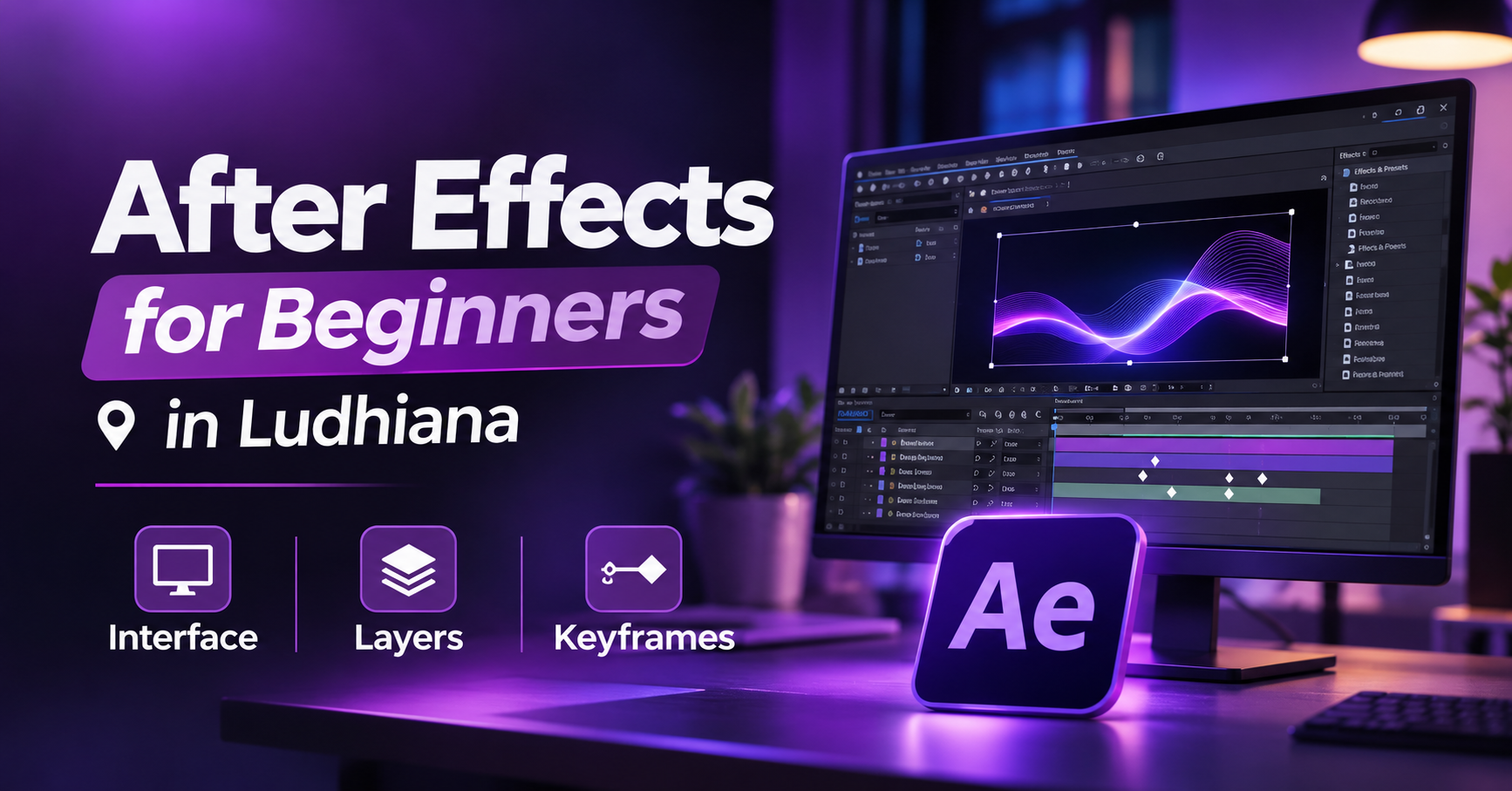
After Effects for Beginners in Ludhiana: Interface, Layers and Keyframes
In today’s digital world, video content has become one of the most powerful ways to communicate, promote a brand, and tell a story. From social media reels and YouTube videos to advertisements, motion graphics, title animations, and visual effects, professional video editing and animation skills are in high demand. One of the most widely used software applications for creating professional motion graphics and visual effects is Adobe After Effects.
For beginners who want to enter the creative industry, learning After Effects can be an excellent starting point. If you are looking for After Effects for Beginners in Ludhiana, understanding the software’s interface, layers, and keyframes is essential before moving toward advanced animation and visual effects.
What is Adobe After Effects?
Adobe After Effects is a professional software used for motion graphics, animation, compositing, visual effects, title design, transitions, and animated graphics. Unlike traditional video editing software, After Effects focuses heavily on creating movement and visual effects.
It is widely used by video editors, motion graphic designers, VFX artists, advertising professionals, YouTubers, filmmakers, and content creators.
For beginners, the software may initially look complicated because it contains multiple panels, tools, timelines, and settings. However, once you understand the basic workflow, After Effects becomes much easier to use.
Why Learn After Effects in Ludhiana?
Ludhiana has a growing creative and digital industry, creating opportunities for students and professionals interested in video editing, animation, graphic design, digital marketing, and content creation.
Learning After Effects can help you develop practical skills for creating:
Motion graphics
Logo animations
YouTube intros and outros
Social media animations
Text animations
Promotional videos
Animated advertisements
Visual effects
Cinematic titles
Product animations
Video transitions
A structured After Effects course in Ludhiana can help beginners understand these concepts step by step instead of trying to learn everything at once.
Understanding the After Effects Interface
The first step for any beginner is becoming familiar with the After Effects interface. The interface contains different panels, and each panel performs a specific function.
1. Project Panel
The Project Panel is where you import and organize your media files. Images, videos, audio files, graphics, and compositions can be stored here.
For example, if you are creating a promotional video, you may import your logo, product images, video clips, background music, and other assets into the Project Panel.
Keeping files organized becomes particularly important when working on large projects.
2. Composition Panel
The Composition Panel is your main visual workspace. This is where you can see the animation or video you are creating.
You can preview your design, position objects, scale elements, rotate graphics, and observe how your animation changes over time.
Understanding the Composition Panel helps beginners visualize the final result while working on their project.
3. Timeline Panel
The Timeline is one of the most important parts of After Effects.
It shows your layers and their position in time. You can use the Timeline to control when an object appears, disappears, moves, changes size, rotates, or becomes transparent.
This is where the concept of keyframes becomes extremely important.
4. Tools Panel
The Tools Panel contains essential tools for creating and editing objects.
Some commonly used tools include:
Selection Tool
Hand Tool
Zoom Tool
Shape Tool
Pen Tool
Text Tool
Rotation Tool
Pan Behind Tool
Beginners should practice these tools individually before combining them in larger projects.
5. Effects and Presets Panel
After Effects includes a wide range of effects and animation presets. These can be used to modify the appearance and movement of elements.
For example, you can apply effects for blur, color correction, distortion, glow, transitions, and other creative treatments.
Understanding how effects work can significantly improve the quality of your motion graphics.
What Are Layers in After Effects?
Layers are another fundamental concept beginners must understand.
Think of layers as transparent sheets stacked on top of each other. Each layer can contain different content, such as text, images, videos, shapes, or effects.
For example, a simple promotional animation might contain:
Background layer
Logo layer
Product image layer
Text layer
Decorative shape layer
Audio layer
Each element can be edited independently.
Types of Layers
After Effects provides several types of layers, including:
Text Layers: Used for creating titles, captions, headings, and animated typography.
Shape Layers: Used to create scalable shapes such as rectangles, circles, lines, and custom graphics.
Solid Layers: Useful for creating backgrounds, color blocks, and certain visual effects.
Video Layers: Used for imported video footage.
Adjustment Layers: Allow you to apply effects to multiple layers without directly changing the original elements.
Audio Layers: Used to add and control sound within your composition.
Understanding how layers work is essential for creating organized and editable projects.
What Are Keyframes?
Keyframes are one of the most important concepts in After Effects.
A keyframe tells After Effects that a particular property should have a specific value at a specific point in time.
For example, suppose you want a logo to move from the left side of the screen to the right side.
You can create one keyframe at the beginning where the logo is positioned on the left. Then create another keyframe later where the logo is positioned on the right.
After Effects automatically creates the movement between these two points.
This process is called animation.
Common Properties You Can Animate
After Effects allows you to animate several properties.
Position
Position controls where an object appears on the screen.
You can use position keyframes to create movements such as objects entering from the side, moving upward, or travelling across the screen.
Scale
Scale controls the size of an object.
For example, you can make a logo gradually grow from small to large.
Rotation
Rotation allows you to spin or turn an object.
It is commonly used for animated icons, logos, graphics, and motion elements.
Opacity
Opacity controls the transparency of an object.
You can use opacity keyframes to create fade-in and fade-out animations.
Anchor Point
The anchor point determines the point around which an object rotates or scales.
Understanding the anchor point is particularly useful when creating professional motion graphics.
Creating Your First Simple Animation
Beginners can start with a simple text animation.
First, create a new composition and add a text layer. Position the text where you want it to appear.
Next, open the text layer properties in the Timeline. You can animate properties such as position, scale, or opacity.
For example, create an opacity keyframe at the beginning with a value of 0%. Move the playhead forward and create another keyframe with opacity at 100%.
When you preview the composition, the text will gradually appear.
This simple exercise teaches beginners the basic relationship between layers, properties, timelines, and keyframes.
Why Practice Matters
Learning After Effects is not just about memorizing tools. The real improvement comes from practice.
Beginners should start with small projects such as:
Animated text
Logo animation
Simple transitions
Instagram reel graphics
YouTube intro
Kinetic typography
Basic shape animation
Simple promotional videos
As your confidence increases, you can move toward more advanced techniques such as masking, tracking, green-screen compositing, motion blur, expressions, 3D layers, and visual effects.
Career Opportunities After Learning After Effects
After gaining practical After Effects skills, learners can explore several creative career paths.
Possible roles include:
Motion Graphics Designer
Video Editor
VFX Artist
Compositor
Social Media Video Editor
Content Creator
Advertising Video Designer
Multimedia Designer
YouTube Video Editor
Freelance Motion Designer
After Effects can also be combined with software such as Adobe Premiere Pro, Photoshop, Illustrator, and other creative tools to develop a broader professional skill set.
Conclusion
Learning Adobe After Effects becomes much easier when beginners first understand the fundamentals. The interface, layers, timeline, properties, and keyframes form the foundation of almost every After Effects project.
If you are searching for After Effects for Beginners in Ludhiana, start with these fundamentals and gradually build your skills through practical projects. Instead of trying to learn every effect immediately, focus on understanding how layers work, how properties are animated, and how keyframes control movement over time.
With consistent practice and proper guidance, beginners can progress from simple text and logo animations to professional motion graphics, visual effects, promotional videos, and advanced creative projects. After Effects is a powerful tool, and learning its fundamentals can open the door to exciting opportunities in the growing creative and digital media industry.
- After Effects
- After Effects Course
- Video Editing
- Motion Graphics
- Animation
- VFX
- Adobe After Effects
- Video Editing Course