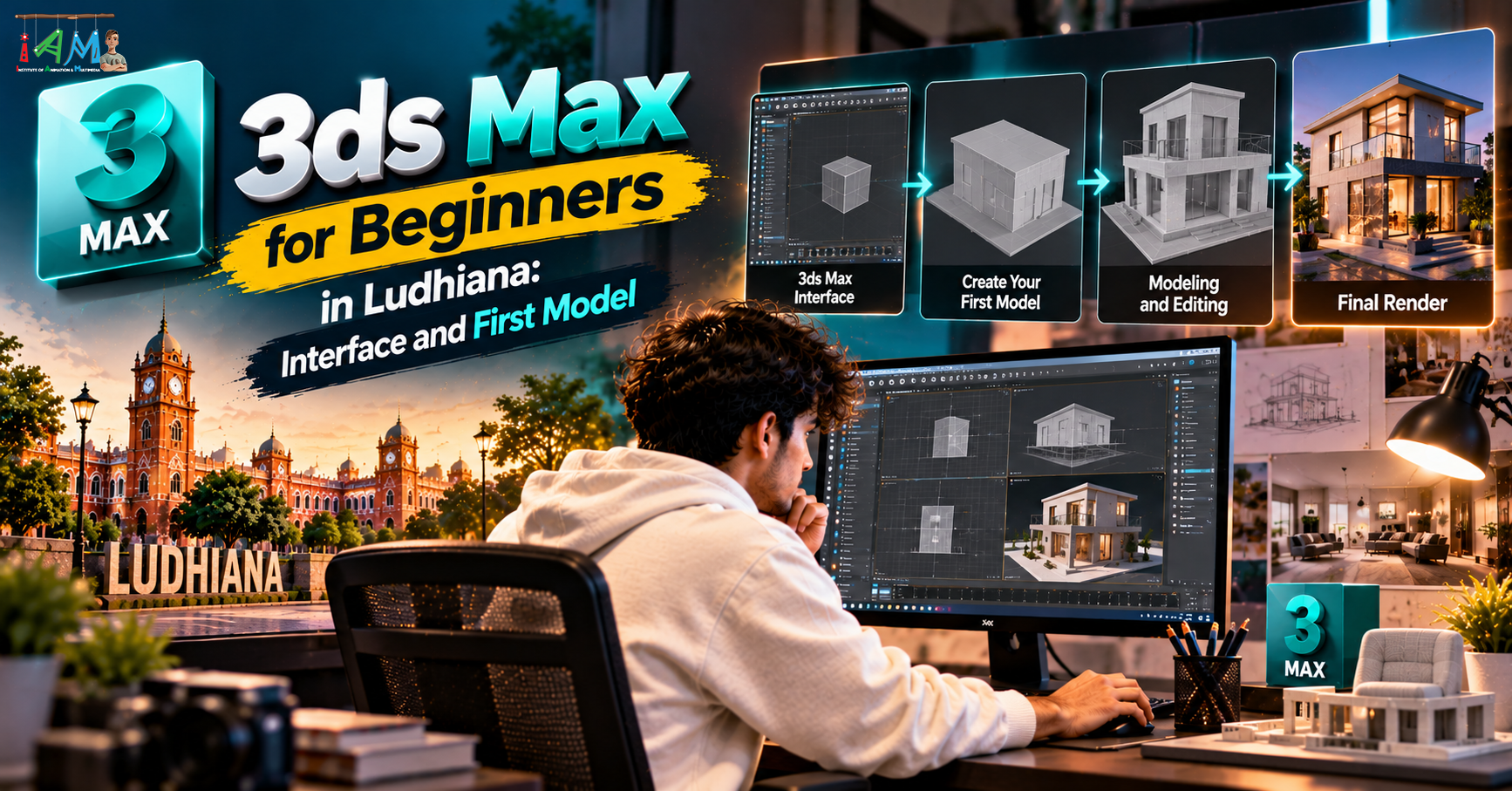
3ds Max for Beginners in Ludhiana: Interface and First Model
Design, AI & Marketing · Nandini · 22 October 2026
Discover how to get started with 3ds Max in Ludhiana. Learn the interface, essential shortcuts, and step-by-step 3D modelling by creating your first wooden table. Explore beginner tips, rendering basics, and career opportunities in interior design, architecture, and product visualisation.
3ds Max for Beginners in Ludhiana: Interface and First Model
Ludhiana has always been a city that makes things: hosiery, bicycle parts, machine tools, furniture, and a growing number of interior and architecture studios. Behind almost every product or design you see today, there is a 3D model that existed first on a screen. If you are a student, a fresh graduate, a designer or a manufacturer in Ludhiana who wants to learn 3D modelling, Autodesk 3ds Max is one of the best places to start.
In this guide we will do two things: understand the 3ds Max interface so it stops feeling intimidating, and build your first model, a simple wooden table, step by step. No prior 3D experience is needed.
Why learn 3ds Max?
3ds Max is widely used for architectural visualisation, interior design, product design, game assets and animation. For learners in Ludhiana, that matters because the skills map directly to local opportunities:
Interior and architecture: show clients a realistic render before a single wall is built.
Product and industrial design: visualise a part, a fixture or a consumer product before manufacturing it.
Furniture and decor: present designs to buyers and export customers as photorealistic images.
Freelancing and remote work: 3D visualisation skills are in demand well beyond your city.
Students and educators can usually get free educational access to Autodesk software through Autodesk's education programme, so check their website for current eligibility before you buy anything.
Before you start: system basics
3ds Max runs on Windows only. A reasonably modern computer with a dedicated graphics card, 16 GB of RAM or more, and an SSD will make learning much smoother. Always check Autodesk's official system requirements for the version you install. Also use a three-button mouse (with a clickable scroll wheel). Navigating 3D space on a touchpad is painful.
Part 1: Understanding the 3ds Max interface
When you first open 3ds Max, the screen looks crowded. Here is what each area does, so you know where to look.
1. Viewports
The large central area is split into four viewports: Top, Front, Left and Perspective. The first three are orthographic views (flat, no perspective), used for precise work. Perspective shows your model the way a camera would see it. The active viewport has a yellow border. Press Alt + W to maximise or restore the active viewport.
2. Command Panel
The panel on the right is where you will spend most of your time. Its tabs are:
Create: make objects such as boxes, cylinders, lights and cameras.
Modify: change an object's parameters and add modifiers.
Hierarchy: control pivot points and linking.
Motion: animation controllers.
Display: hide or freeze objects.
Utilities: extra tools.
For your first few weeks, Create and Modify are all you need.
3. Main Toolbar
Across the top you will find the core tools: Select, Move, Rotate, Scale, Undo/Redo, Snap toggles, Material Editor and Render buttons.
4. Menu Bar and Ribbon
The menu bar holds commands like File, Edit, Tools, Customize and Rendering. The Ribbon (if visible) gives quick access to modelling tools, which becomes useful later.
5. Scene Explorer
On the left is a list of every object in your scene. Naming objects properly here will save you hours of confusion in bigger projects.
6. Timeline and Animation Controls
At the bottom are the time slider and animation controls. You will not need them for modelling, but they are the gateway to animation.
7. Status bar and coordinate display
The bottom area also has X, Y and Z fields, where you can type exact positions. This is how you get accurate models instead of eyeballing everything.
8. Viewport navigation
Navigation is the first real skill to practise:
Scroll wheel: zoom in and out.
Middle mouse button drag: pan.
Alt + middle mouse button drag: orbit around the scene.
ViewCube (top-right of the viewport): click it to jump between views.
Shortcuts worth memorising now
Key
Action
Q
Select
W
Move
E
Rotate
R
Scale
F3
Toggle wireframe
F4
Toggle edged faces
Alt + W
Maximise active viewport
Ctrl + Z
Undo
Ctrl + S
Save
Z
Zoom to selected object
Part 2: Set up your scene
Before modelling anything, set your units. Skipping this is the most common beginner mistake.
Go to Customize > Units Setup.
Choose Metric and select Centimeters (or Millimeters, if you prefer to model small parts).
Click System Unit Setup and make sure the system unit matches.
Save your file right away with Ctrl + S and give it a clear name, such as
wooden_table_v01.max.
Part 3: Build your first model, a simple wooden table
We will build a basic four-legged table using only standard primitives. Don't worry about making it fancy. The goal is to learn the workflow.
Step 1: Create the table top
In the Create panel, click Geometry > Standard Primitives > Box.
In the Top viewport, click and drag to define the base, then move the mouse and click to set the height.
Go to the Modify tab and type exact values: Length 80, Width 80, Height 4 (cm).
Rename the object to
Table_Topin the name field.
Step 2: Position it at the right height
With the box selected, look at the X, Y, Z fields at the bottom of the screen (or use the Move tool's transform type-in). Set X = 0, Y = 0, Z = 45. The table top now floats 45 cm above the ground, leaving room for the legs.
Step 3: Create one leg
Create another Box.
In the Modify tab, set Length 5, Width 5, Height 45.
Rename it
Leg_01.Set its position to X = 37.5, Y = 37.5, Z = 0.
The leg now stands under one corner of the table top, with its outer edge flush with the edge of the top.
Step 4: Clone the legs
Select
Leg_01, then hold Shift and drag with the Move tool.In the Clone Options dialog choose Instance and set the number of copies to 1. Instances stay linked, so editing one edits all.
Set the new leg's position to X = -37.5, Y = 37.5, Z = 0.
Repeat to place the other two legs at X = 37.5, Y = -37.5 and X = -37.5, Y = -37.5.
Step 5: Soften the edges with Chamfer
Real wooden furniture never has perfectly sharp edges, and sharp edges look fake in renders.
Select
Table_Topand open the Modify tab.In the modifier list, choose Chamfer.
Set a small amount, such as 0.3 to 0.5 cm, with 2 segments.
Select one leg (the instances will update together) and add the same modifier.
Hold on, that small highlight on the edge catching the light is what makes a render look believable.
Step 6: Group and name your work
Select all five objects, then go to Group > Group and name it Wooden_Table. Good naming habits now will make you a much better professional later.
Step 7: Add a simple material
Press M to open the Material Editor.
Pick a basic material (such as Physical Material or Arnold Standard Surface, depending on your version).
Set the base colour to a warm brown, or load a wood texture image if you have one.
Drag the material onto your table objects, or use the Assign Material to Selection button.
Step 8: Add a floor and a light, then render
Create a Plane (Geometry > Standard Primitives > Plane) of about 300 x 300 cm at Z = 0 to act as the floor.
Add a light (for example from the Create > Lights panel) or use the default settings of your renderer's sky or dome light.
Make sure your Perspective viewport shows a pleasant angle.
Press Shift + Q for a quick render, or open Render Setup (F10) for more control.
Congratulations, you have just modelled, textured and rendered your first object.
Common beginner mistakes to avoid
Ignoring units. Models imported later will not match in scale.
Never saving incrementally. 3ds Max can crash. Save versions like
v01,v02,v03.Leaving objects named Box001. Rename everything.
Relying on eyeballing. Type in exact numbers whenever possible.
Skipping the chamfer. Sharp edges are a giveaway of amateur work.
What to learn next
Once this table feels easy, try the following in order:
Edit Poly modelling (vertices, edges, polygons).
Common modifiers: Extrude, Bevel, Shell, TurboSmooth.
UVW mapping so textures sit properly on surfaces.
Lighting and cameras for realistic interiors.
A full small project, such as a single room or a product on a plain studio backdrop.
Learning 3ds Max in Ludhiana
You can learn 3ds Max through free tutorials online, but many beginners progress faster with a structured, instructor-led course, especially for feedback on their work. When choosing a training centre in Ludhiana, look for:
A syllabus that covers modelling, materials, lighting, rendering and a final portfolio project.
Hands-on practice on proper machines, not only theory.
Trainers who show real client-style work, not only exercises.
Small batch sizes so you actually get feedback.
A chance to build a portfolio you can show to employers or clients.
Ask to see student work and sit in on a demo class before you commit.
Final thoughts
The 3ds Max interface looks scary for exactly one week. After that, it becomes a toolbox you know your way around. Practise navigation, learn your shortcuts, set units, name your objects, and keep modelling small things every day: a chair, a lamp, a cup, a cycle bell. Consistency beats talent in 3D.
Have you built your first model yet? Start with the table above and keep going from there.
Frequently asked questions
Is 3ds Max good for beginners? Yes. It has a learning curve, but its primitives and modifiers make early projects approachable, and there are plenty of tutorials.
Do I need a powerful computer? For basic modelling, a mid-range system with a decent graphics card works. Rendering large scenes benefits from more RAM and a stronger GPU or CPU.
How long does it take to learn? You can learn the basics in a few weeks of regular practice. Becoming job-ready in visualisation typically takes a few months of focused project work.
Can I use 3ds Max for interior design? Absolutely. It is one of the standard tools for interior visualisation and architectural rendering.
- 3ds Max for Beginners
- 3D Modelling Tutorial
- 3ds Max Course Ludhiana
- Interior Design Training
- Architectural Visualisation
- 3D Rendering
- Product Design
- Autodesk 3ds Max